Secure Your Business Wi-Fi: Simple Steps for Better Protection
In today’s hyperconnected business environment, your Wi-Fi network is both a mission-critical infrastructure component and a potential security exposure. Whether you operate a small local business or manage multiple office locations, the wireless network carrying your sensitive data, financial records, and customer information must be treated as a priority for robust protection.
CYBERSECURITY
QuickfixIT Pro


Unfortunately, many small and medium-sized businesses in Calgary continue to operate with critically inadequate Wi-Fi security. Recent findings from the Canadian Centre for Cyber Security indicate that more than 40% of cyberattacks now target small businesses, with unsecured wireless networks representing one of the most common points of entry. Even more concerning, the average cost of a data breach for a small business exceeds $120,000—an impact severe enough to force many organizations to shut down permanently.
The good news is that effective Wi-Fi security does not require an enterprise-scale IT department or a large security budget. In this article, we outline practical, actionable measures that any business can implement to substantially strengthen its wireless network security—without the need for advanced technical expertise.
Why Wi-Fi Security Matters for Your Business
Your Wi-Fi network does far more than provide internet access. It carries customer data, employee credentials, financial information, and proprietary business assets all of which can be intercepted, exposed, or manipulated if the network is compromised.
Man-in-the-middle attacks: Attackers intercept data as it travels between connected devices.
Rogue access points: Malicious Wi-Fi hotspots mimic legitimate networks to deceive users.
Brute-force password cracking: Automated tools systematically guess weak or reused passwords.
The 2025 Verizon Data Breach Investigations Report found that 61% of data breaches involve compromised credentials. In many cases, a single unsecured device is enough to cause serious repercussions, including compliance violations, financial penalties, and operational disruption.
Additionally, cyber insurance providers are increasingly demanding verifiable evidence of strong network security controls. Proactive Wi-Fi protection is therefore not just a technical safeguard—it is a fundamental requirement for compliance, customer trust, and long-term business reputation.
Check if Your Wi-Fi is Secure: A Quick Audit
Before implementing fixes, it is important to perform a quick health check of your existing Wi-Fi environment. Consider the following critical questions:
Router administrator credentials: Are you still using the default username and password (such as “admin” / “password”) that shipped with your router? These credentials control the router’s management interface and are separate from your Wi-Fi network name and passphrase.
Wi-Fi encryption: Which security protocol is your network using? Ideally, it should be WPA3, or at minimum WPA2. Legacy standards such as WPA or WEP are insecure and should never be used. You can typically verify this in your device’s Wi-Fi settings while connected to the network.
Firmware updates: When was your router’s firmware last updated? Are updates configured to install automatically, or have they been overlooked? Outdated firmware is a common attack vector.
Network access control: Do you have clear visibility into which users and devices are currently connected to your business network? How is access approved, monitored, and revoked?
Guest network isolation: If you provide guest Wi-Fi, is that traffic fully segregated from your primary business network and internal systems?
Physical security: Is your router and associated networking equipment (such as switches or access points) physically secured, or could unauthorized individuals access them?
If you were uncertain about any of these answers or if your responses reveal weaknesses such as default credentials, outdated encryption, or poor access controls it is a strong indicator that immediate action is required to reduce your security risk.
Common Wi-Fi Threats:
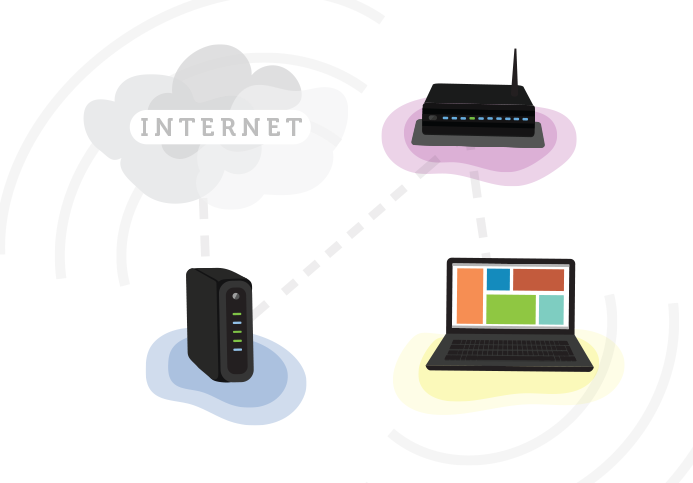
One of the most critical—and frequently overlooked—security vulnerabilities is the continued use of default administrator credentials on network equipment. These default usernames and passwords are widely documented and easily accessible online, making them the digital equivalent of leaving your business door wide open.
Why this matters:
According to the Canadian Centre for Cyber Security, more than 30% of small business network breaches originate from compromised router administrator credentials.
How to implement this fix:
Access your router’s administration interface, typically by entering 192.168.0.1 or 192.168.1.1 into a web browser
Navigate to the Administration, System, or Settings section
Change both the administrator username (if supported) and password
Create a strong password of at least 16 characters, combining uppercase letters, lowercase letters, numbers, and special characters
Store the credentials securely in a business-grade password manager rather than writing them down or storing them near the device
Establish a password rotation policy, with updates every 90 days as a best practice
Addressing this single issue immediately eliminates one of the most common entry points used in small business network compromises.
Simple Steps to Strengthen Your Wi-Fi Security
Signs Your Business Wi-Fi Has Been Compromised
Router manufacturers routinely release firmware updates to address newly discovered security vulnerabilities. However, many businesses deploy networking equipment and fail to update it thereafter, leaving well-known security flaws unpatched and exploitable.
Why this matters:
The 2024 Cybersecurity Horizon Report indicates that 37% of network compromises exploited vulnerabilities for which security patches had been available for more than six months.
How to implement this fix:
Log in to your router’s administration interface
Navigate to the Firmware, Software, or System Update section
Check for available updates and install them promptly
Enable automatic updates whenever the option is available and operationally appropriate
Maintain documentation of update activity to support compliance and audit requirements
Set calendar reminders for periodic manual checks if automatic updates are unavailable or unsuitable
Replace networking equipment that is no longer supported with security updates
For enterprise-grade hardware from vendors such as Cisco, Juniper, or Fortinet, firmware updates may require downloading files directly from the manufacturer’s website and following vendor-specific installation procedures.
1. Change Default Router Credentials
2. Update Router Firmware
Wi-Fi encryption safeguards the data transmitted between connected devices and your network. Relying on outdated encryption standards effectively exposes sensitive business information to anyone with basic interception tools.
Why this matters:
Legacy encryption protocols such as WEP and early versions of WPA have been thoroughly compromised and can be cracked within minutes using freely available software.
How to implement this fix:
Access your router’s administration interface
Navigate to Wireless Security, Encryption, or Security Settings
Select WPA3-Personal if it is supported (the most secure current standard)
If WPA3 is unavailable, configure WPA2-PSK with AES encryption (avoid TKIP)
Disable “mixed mode” configurations that retain compatibility with weaker, legacy standards
In enterprise environments, consider WPA2-Enterprise or WPA3-Enterprise with RADIUS authentication to issue individual user credentials
Test connectivity across all devices after applying the new encryption settings
Considerations for legacy devices:
Some older hardware may not support modern encryption standards. In those cases:
Update the device firmware if updates are available
Use wired Ethernet connections instead of Wi-Fi where feasible
Place legacy devices on a separate, isolated network segment
Develop a replacement plan for devices that cannot support secure encryption
Proper encryption is a foundational control that significantly reduces the risk of wireless data interception and unauthorized access.
Network Password Security: Protecting Your Wi-Fi Access
Your network password—also known as a pre-shared key or passphrase—is your first line of defense against unauthorized access.
Why it matters: Weak Wi-Fi passwords are vulnerable to “brute force” attacks, where thousands of combinations can be attempted every second.
Best practices for implementation:
Use a unique passphrase of at least 16 characters.
Include a mix of uppercase and lowercase letters, numbers, and special characters.
Avoid dictionary words, company names, addresses, or other easily guessed information.
Consider a passphrase method: create a memorable sentence incorporating numbers and special characters.
Example of a strong passphrase: ''2Dmont0N-Bu$iness-Security-2025! ''
Maintenance recommendations:
Update passwords quarterly or whenever employees leave.
Use a secure method to distribute new passwords to authorized users.
Consider a business-grade password manager to safely store and share network credentials.
3. Implement Strong Encryption
Hiding Your Network Name (SSID) for Added Security
Broadcasting your network name (SSID) makes it visible to anyone within range, including potential attackers.
Why it matters: While hiding your SSID is not a complete security solution, it helps reduce your network’s visibility and adds an extra layer of protection.
How to implement:
Access your router’s admin panel.
Navigate to Wireless Settings or SSID Configuration.
Disable SSID Broadcast or Network Name Broadcast.
Configure all business devices to connect to the hidden network.
Manually enter the network name when connecting new devices, as hidden networks won’t appear in scans.
Important considerations:
Hiding your SSID does not make your network invisible to all tools—some can still detect hidden networks.
Combine SSID hiding with strong passwords, encryption, and other security measures for best protection.
4. Create a Strong Network Password
Providing internet access to visitors without exposing your business network is essential for maintaining security boundaries.
Why it matters: Guest devices may be compromised or misused intentionally. Separating them from your main network protects critical business resources.
Implementation steps:
Use the guest network feature available on most modern business routers.
Access your router’s admin panel and locate Guest Network, Guest Access, or similar settings.
Enable the guest network with the following considerations:
Assign a different SSID (e.g., BusinessName-Guest).
Use WPA2 or WPA3 encryption with a strong password, distinct from the main network.
Enable client isolation to prevent guest devices from seeing each other.
Set bandwidth limits to avoid impacting business operations.
Assign a separate IP range from your main network.
Optional enhancements:
Use a captive portal requiring guests to accept terms of use.
Implement expiring passwords that change daily or weekly.
Post guest Wi-Fi details clearly in designated areas with usage guidelines.
Enable logging of guest network activity for monitoring.
Advanced security measures:
Schedule the guest network to disable automatically after business hours.
Use MAC address filtering for known visitor devices.
Consider a cloud-managed guest Wi-Fi solution for enhanced logging, monitoring, and security controls.
5. Enable Network Hiding
Monitor and Control Connected Devices
Many businesses are unaware of how many devices are actually connected to their networks, creating critical security blind spots.
Why it matters: Unauthorized devices can steal data, consume bandwidth, or serve as entry points for cyberattacks.
Implementation steps:
Access your router’s admin panel and check Connected Devices, Client List, or DHCP Clients.
Document all authorized devices, including:
Device name/type
MAC address (unique hardware identifier)
IP address
Purpose or owner
Regularly audit this list to identify unauthorized devices.
Consider advanced security measures:
Implement Network Access Control (NAC) to require authentication before connecting.
Configure alerts for new device connections outside business hours.
Use MAC address filtering to allow only known devices (note: MAC addresses can be spoofed).
Deploy automated network scanning tools to detect unauthorized devices.
Establish a process for onboarding new devices and removing departed employees’ devices.
For businesses with more than 20 devices, consider a dedicated network management solution for granular visibility and control.
6. Setting Up Secure Guest Wi-Fi Access
Even the strongest technical measures can be compromised by employee mistakes or lack of awareness.
Why it matters: Human error and insufficient security knowledge contribute to over 90% of successful cyber attacks, according to the Canadian Cyber Centre.
How to implement:
Develop a clear, jargon-free Wi-Fi and network usage policy, covering:
Password requirements and secure handling
Prohibited activities on business networks
Risks of public Wi-Fi when working remotely
Procedures for reporting suspected security incidents
Consequences for policy violations
Conduct brief quarterly training sessions on network security.
Use visual reminders of best practices in workspaces.
Establish a secure method for distributing updated network credentials.
Provide specific guidance for remote employees.
Consider simulated phishing or social engineering tests to identify training gaps.
Recognize and reward security-conscious behavior.
Ensure new employees receive security training during onboarding.
7. Monitoring and Managing Connected Devices
Securing your network isn’t limited to the office remote work introduces additional risks that must be addressed.
Best Practices for Remote Employees:
Home Wi-Fi Standards
Encourage or require employees to use secure home Wi-Fi, including WPA2/WPA3 encryption, strong passwords, and up-to-date router firmware.
VPN Use
Require a company-approved VPN for accessing business resources remotely. VPNs provide a secure, encrypted tunnel over home or public networks.
Multi-Factor Authentication (MFA)
Implement MFA for all remote access to company resources, adding an extra layer of protection beyond passwords.
Equipment Policies
Clearly define rules for company-provided vs. personal devices (BYOD).
Ensure personal devices meet minimum security standards, and consider Mobile Device Management (MDM) solutions.
Data Handling
Train employees on securely managing sensitive data remotely: minimize local storage, use secure file-sharing tools, and follow company protocols.
Support and Resources
Provide guidance or tools to help employees secure their home networks, including potentially subsidized security solutions.
8. Employee Training on Wi-Fi Security


Even with robust preventative measures in place, it’s crucial to remain vigilant for warning signs that your network may have been compromised.
Special Considerations for Remote and Hybrid Workforces
Unexplained slowdowns in internet or network performance
Wireless connectivity problems that were not previously present
Unusual patterns in bandwidth usage or data transfers
Unexpected reboots of routers or access points
Equipment running hotter than normal or displaying unusual indicator lights
How QuickFixIT Pro Can Help Secure Your Business Wi-Fi
Repeated failed login attempts to network equipment or services
Password reset requests you did not initiate
Users being locked out of accounts unexpectedly
New administrative users appearing in router or system configurations
Employees reporting unusual activity or behaviour on their accounts
Performance Indicators
Unknown devices connecting to your network
Security features being disabled without authorization
Changes to DNS settings or unexpected web traffic redirects
Unusual outbound traffic to unfamiliar destinations
After-hours network activity when no authorized users are present
Sudden increases in spam emails originating from your domain
Strange pop-ups or redirects while browsing the internet
Immediate Action:
If you observe any of these signs, act without delay. Isolate affected systems and engage professional IT services to investigate and remediate potential breaches.
User Account Anomalies
Implementing strong Wi-Fi security doesn’t need to be complicated. QuickFixIT Pro offers comprehensive network services in Edmonton, specifically designed to protect small and medium-sized businesses.
Network Behaviour Changes


Comprehensive Network Security Assessment
Full audit of existing wireless infrastructure
Vulnerability identification and risk analysis
Regulatory compliance evaluation
Detailed report with prioritized recommendations
Professional Security Implementation
Router and access point configuration and hardening
Encryption deployment and verification
Network segmentation and access control setup
Guest network configuration and management
VPN setup and configuration for remote employees
Ongoing maintenance and updates
Managed Security Services
24/7 network monitoring and threat detection
Automated firmware updates and patch management
Regular security posture reviews and improvements
Incident response and remediation
Employee security awareness training
Key Takeaways: Your Wi-Fi Security Action Plan
Securing your business Wi-Fi is not a one-time task—it requires continuous attention. By following the steps outlined in this guide, you can greatly reduce your risk exposure and protect critical business resources.
Key Essentials:
Change Default Passwords: Update router admin and Wi-Fi passwords immediately.
Use Strong Encryption: Enable WPA3, or at minimum WPA2-AES.
Keep Firmware Updated: Use automatic updates or regularly check manually.
Segment Networks: Maintain a separate, isolated Guest network.
Monitor Devices: Track and document all devices connected to your network.
Train Employees: Make security awareness a core part of workplace culture.
Secure Remote Access: Require VPN use for off-site work.
Why it matters: Protecting your network safeguards your data, reputation, and bottom line.
Our Wi-Fi Security Services Include:
Don’t leave your business exposed—take the next step toward robust network protection.
Contact QuickFixIT Pro for a complimentary network security assessment. Our team of Edmonton IT experts will evaluate your current setup and provide actionable recommendations tailored to your business needs.
Let QuickFixIT Pro give you the peace of mind that comes from knowing your business network is secure.
Contact
Fast, friendly IT support in Edmonton.
Email : contact@quickfixitpro.com
Phone : 1-825-767-2829
© 2026. QuickFixIT Pro - All rights reserved.
Certified IT & Computer Support
Proudly Serving Edmonton & Surrounding Areas
Our Service