
Overheating Nightmares: How Temperature Affects Your Computer’s Performance
Is your computer running slowly, crashing without warning, or sounding like a jet engine during routine tasks? While many factors can degrade system performance, one of the most commonly overlooked causes is excessive heat. Like any precision device, computers operate within an optimal temperature range, and when that range is exceeded, performance declines rapidly. Overheating accounts for up to 60% of premature hardware failures, making temperature management one of the most critical yet frequently neglected aspects of computer maintenance. Understanding how heat impacts performance allows you to prevent avoidable damage, extend hardware lifespan, and eliminate unnecessary frustration. In this article, we’ll examine how temperature affects your system and outline practical steps to keep it running efficiently.
COMPUTERS ISSUES
QuickFixIT Pro


Computers are designed to operate within a safe temperature range, and when overheating occurs, performance and reliability decline quickly. Excessive heat is a leading cause of system slowdowns, crashes, and premature hardware failure, yet it is often overlooked.
Understanding and managing temperature is essential to maintaining performance, extending hardware lifespan, and preventing avoidable damage.
Why Computer Temperature Matters
Heat is one of the most damaging threats to electronic components. When a computer operates at excessive temperatures, it doesn’t merely slow down—it actively protects itself by throttling performance, and prolonged heat exposure can cause irreversible damage to critical, high-value hardware.
While modern systems include built-in thermal protection mechanisms, these safeguards come at the expense of performance, reliability, and long-term hardware lifespan.
Thermal Throttling
Automatic performance throttling: CPUs and GPUs reduce operating speeds by 40–50% when temperatures approach 90–100°C to prevent damage.
Noticeable slowdowns: A processor capable of running at 4.2 GHz may drop to 2.5 GHz or lower, turning tasks that once took seconds into multi-minute operations.
Progressive performance decline: Systems often start at full speed but gradually slow down as heat builds during sustained workloads.
Real-world impact on applications: Video calls begin to lag, calculations take significantly longer, and software may become sluggish or unresponsive under thermal stress.
System Stability Problems
Random Crashes and Freezes: Excessive heat can cause components to miscalculate, leading to application crashes.
Emergency Shutdowns: Motherboards may enforce sudden shutdowns when temperatures reach critical levels, often without warning.
Blue Screen of Death (BSOD): Overheated components are a common trigger for these system error screens.
Data Corruption: Heat-induced instability can corrupt files and produce inconsistent results.
Long-Term Hardware Damage
Accelerated Aging: Every 10°C rise in temperature can cut component lifespan by up to 50%.
Shortened System Lifespan: Business computers may need replacement in 2–3 years instead of the typical 4–5 years.
Increased Failure Rates: Extended heat exposure significantly raises the risk of catastrophic component failure.
Costly Replacements: Heat damage often necessitates replacing multiple components at once.
How Heat Affects Different Components
Each component in your computer responds differently to excessive heat, resulting in distinct symptoms and performance issues. Understanding how heat affects individual components allows you to identify which parts of your system are under thermal stress and prioritize cooling solutions more effectively.
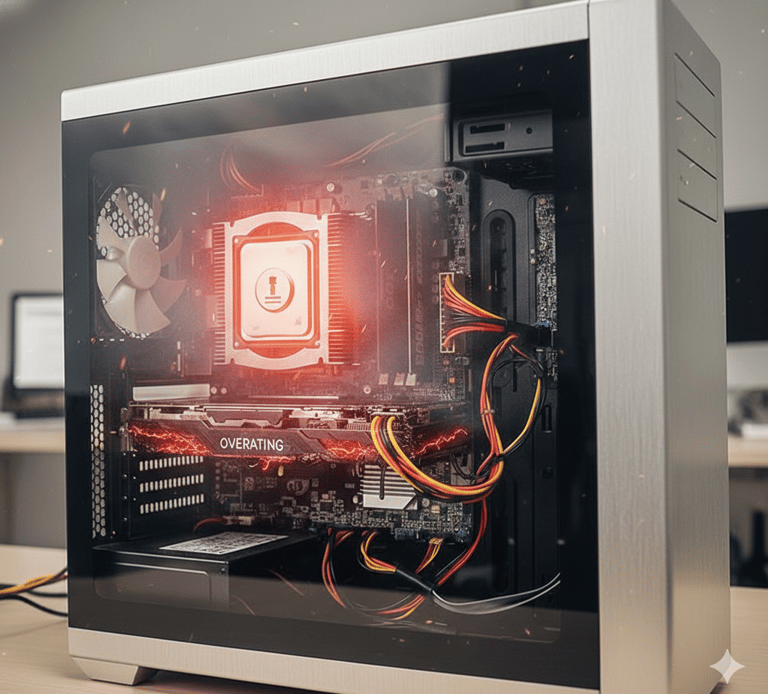
CPU (Central Processing Unit)
Performance throttling: Processing speeds are reduced by 20–50% under high temperatures to prevent damage
Computational errors: Excessive heat can cause calculation faults that lead to application crashes or system instability
Permanent damage risk: Sustained exposure to extreme temperatures can cause irreversible processor damage
Reduced lifespan: Ongoing overheating significantly shortens the overall lifespan of the CPU
GPU (Graphics Processing Unit)
Visual artifacts: Screen flickering, graphical glitches, and image distortion appear under thermal stress
Frame rate drops: Games and video applications become choppy, laggy, or unresponsive
Encoding errors: Video rendering and encoding tasks fail or generate corrupted output
High replacement cost: Graphics cards are among the most expensive components to repair or replace
Memory (RAM)
Data corruption: Excessive heat triggers memory errors that corrupt active data
System crashes: Unstable RAM causes frequent application failures and unexpected system crashes
Reduced performance: Thermal stress slows data transfer between memory and processor
Permanent damage: Prolonged exposure to extreme heat can irreversibly damage memory cells
Storage Devices
Reduced speeds: Both SSDs and traditional hard drives throttle performance when overheated
Data corruption risk: Elevated temperatures increase the likelihood of file corruption or data loss
Higher failure rates: Excessive heat significantly shortens storage device lifespan
High recovery costs: Recovering data from failed drives is often complex and expensive
Warning Signs Your Computer Is Overheating
Recognizing overheating symptoms early can prevent serious hardware damage and costly repairs. These warning signs usually appear in a predictable progression, beginning with minor performance issues and escalating into critical system failures.
Monitor both physical indicators and performance changes closely, as they often occur simultaneously and reinforce each other.
Physical Symptoms
Excessive fan noise: Cooling fans run continuously at high speeds, often sounding like a jet engine
Hot air from vents: Noticeably hotter-than-normal air is expelled from the system vents
Overheated surfaces: The computer chassis becomes uncomfortably hot to the touch, particularly near the CPU or GPU
Burning odors: Immediate shutdown is required, as this indicates components may be overheating to the point of damage
Performance Changes
Gradual slowdowns: The system performs well initially but becomes progressively sluggish during extended use
Task-specific issues: Performance degradation occurs primarily during resource-intensive applications
Graphics problems: Screen flickering, visual artifacts, or image distortion appear during graphics-heavy workloads
Increasing response delays: The system becomes noticeably less responsive the longer it remains powered on
System Behaviour Issues
Unexpected shutdowns: The system powers off abruptly without warning during demanding workloads
Startup difficulties: The computer struggles to boot or fails to start after extended or intensive use
Temperature alerts: BIOS or UEFI warnings indicate excessive temperatures during system startup
Hardware error messages: System diagnostics report errors linked to specific overheated components
Common Causes of Overheating
Understanding what causes your computer to overheat is essential for effective prevention. Most overheating issues stem from a combination of environmental factors, poor maintenance, and demanding usage patterns that can be addressed with proper attention.
Identifying the root cause helps you implement the most effective solutions and prevent future problems.
Environmental Factors
Elevated room temperature: Every 5°C increase in ambient temperature raises internal system temperatures by approximately 2–3°C
Inadequate ventilation: Enclosed spaces and obstructed vents can increase internal temperatures by 10–15°C
Direct sunlight exposure: Sunlight striking the computer chassis can raise component temperatures by more than 20°C
Seasonal impact: Summer heat results in approximately 30% more overheating-related service calls in Edmonton
Hardware Maintenance Issues
Keep an eye on your computer’s temperature: Monitoring is the first step in preventing overheating. Modern systems offer multiple ways to check temperatures, from built-in utilities to specialized software that provides detailed tracking and alerts.
Regular monitoring lets you establish normal temperature ranges and quickly detect when issues arise.
Usage Patterns
Dust accumulation: Just 2mm of dust on heatsinks increases temperatures by 10-15°C
Failing fans: Aging fans lose up to 30% cooling efficiency before complete failure
Old thermal paste: Degraded thermal paste reduces heat transfer efficiency by up to 50%
Blocked air vents: External blockages can raise internal temperatures by 5-10°C
How to Monitor Your Computer’s Temperature
Resource-heavy applications: Tasks like video editing, 3D rendering, and complex computations produce significant heat.
Heavy multitasking: Running multiple demanding programs at once can overwhelm cooling systems.
Malware activity: Crypto miners and other malicious software may use 100% of system resources constantly.
Overclocking: Adjusting hardware settings beyond factory specifications generates excessive heat.


Built-in Monitoring Options
BIOS/UEFI Access: Check temperature readings directly during system startup.
Windows Task Manager: Newer versions show GPU temperatures in the Performance tab.
Mac Activity Monitor: Use alongside tools like Temperature Gauge for detailed monitoring.
System Notifications: Receive built-in alerts when temperatures approach critical levels.
Third-Party Software Solutions
Comprehensive Monitoring: Use tools like HWiNFO, Open Hardware Monitor, or NZXT CAM to track system temperatures.
Custom Alerts: Set warnings to trigger when temperatures exceed safe limits.
Historical Tracking: Monitor trends over time to detect potential issues early.
Real-Time Displays: Keep temperature information visible during operation.
Safe Temperature Guidelines
CPU Temperatures:
Ideal: below 75°C
Acceptable: 75–85°C
Critical: above 85°C requires attention
GPU Temperatures:
Ideal: below 80°C
Acceptable: 80–90°C
Critical: above 90°C requires attention
Hard Drive Temperatures:
Ideal: below 45°C
Risk: above 50°C may cause premature failure
Alert Thresholds:
CPU: 80°C
GPU: 85°C
Immediate Solutions for Overheating
Quick fixes for an overheating computer:
When your system is running hot, these practical steps can offer immediate relief and help prevent damage while you implement longer-term solutions. Most require no special tools and can be applied right away.
Begin with the simplest measures first—they often deliver the biggest improvements with the least effort.
I can also make a short, punchy version suitable for a guide or checklist format.


Improve Airflow and Positioning
Clear surrounding space: Keep 10–15 cm (4–6 in) of clearance around your computer.
Elevate desktops: Place systems on stands or platforms instead of directly on carpeted floors.
Use laptop stands: Raising laptops 1–2 in can lower temperatures by 5–10 °C.
Avoid heat sources: Keep computers away from heaters, direct sunlight, and other warm devices.
Clean Dust and Debris
External Cleaning: Use compressed air weekly to remove dust from vents, especially in dusty environments.
Internal Desktop Cleaning: Open desktop cases every 6–12 months for a thorough cleaning with compressed air.
Professional Laptop Cleaning: Have qualified technicians clean laptop internals to prevent damage.
Focus on Critical Areas: Pay extra attention to CPU and GPU heatsinks, where dust tends to accumulate.
Optimize Software and Usage
Close Unnecessary Programs: Use Task Manager to end resource-heavy background processes.
Limit Browser Tabs: Reduce open tabs and use extensions to suspend inactive ones.
Schedule Intensive Tasks: Run demanding applications during cooler times of the day.
Audit Startup Programs: Disable non-essential applications that launch automatically with your system.
Long-Term Cooling Solutions
Advanced cooling solutions:
If high temperatures persist or you run high-performance systems, more robust cooling upgrades may be needed. While these require greater investment, they offer significant long-term benefits for performance and hardware longevity.
For complex installations, professional assistance is recommended to ensure proper implementation and prevent component damage.


Hardware Upgrades
Aftermarket CPU Air Coolers: High-performance coolers from brands like Noctua or be quiet! can lower CPU temperatures by 10–20 °C compared to stock coolers.
Additional Case Fans: Proper fan placement improves airflow and overall system cooling.
All-in-One (AIO) Liquid Coolers: Closed-loop systems offer excellent cooling with relatively simple installation.
Custom Water Cooling: Provides top-tier thermal performance for workstations with extreme processing demands, though rarely needed for typical business use.
High-Efficiency Power Supplies: 80+ Gold-rated PSUs generate less heat and deliver more stable power to components.
Maintenance Services
Thermal Paste Replacement: Have professionals reapply thermal paste every 2–3 years to maintain optimal heat transfer.
Fan Replacement: Replace aging or noisy fans before they fail completely.
System Cleaning Services: Professional deep cleaning ensures business computers remain dust-free and efficient.
Cooling System Assessment: Experts can evaluate your current cooling setup and recommend improvements.
Environmental Controls
HVAC Optimization: Keep office temperatures between 20–24 °C (68–75 °F).
Humidity Control: Maintain relative humidity around 45–55% for optimal equipment performance.
Seasonal Adjustments: Provide supplemental cooling during hot summer months.
Office Layout Improvements: Position heat-generating equipment away from workstations.
Why Laptops Overheat More
Compact Design: Limited internal space reduces airflow and heat dissipation.
Shared Cooling: A single cooling system manages both CPU and GPU heat, increasing thermal load.
Dust Sensitivity: Even small amounts of dust can noticeably degrade cooling performance.
Battery Heat: Laptop batteries generate additional heat and are sensitive to high temperatures.


Special Considerations for Laptops
Laptop cooling challenges:
Laptops are more prone to overheating than desktops because of their compact design and shared internal cooling systems. Limited internal space restricts airflow, making efficient heat dissipation more difficult.
Being aware of these limitations allows you to manage temperatures effectively and extend your laptop’s lifespan.
Laptop-Specific Solutions
Cooling Pads: External USB fans can lower temperatures by 5–15 °C during heavy use.
Proper Placement: Always place laptops on hard, flat surfaces to keep air vents unobstructed.
Power Management: Use energy-saving settings to reduce heat during light tasks.
Regular Breaks: Give your laptop time to cool after intensive use before storing or transporting.
Safe Operating Practices
Surface Awareness: Avoid using laptops on beds, couches, or other soft surfaces that block vents.
Transport Considerations: Let laptops cool before placing them in bags or backpacks.
Environmental Caution: Avoid using laptops in hot cars or under direct sunlight.
Storage Practices: Store laptops in cool, dry environments when not in use.
Know when to seek professional help:
While routine maintenance can resolve most temperature issues, some situations require expert intervention to prevent costly mistakes or further damage.
Professional diagnostic services can quickly pinpoint complex problems that might otherwise take hours of troubleshooting.
When to Seek Professional Help
Persistent High Temperatures: Heat issues continue despite thorough cleaning and basic fixes.
Unusual Fan Noises: Grinding, rattling, or clicking sounds suggest mechanical failure.
Continued System Shutdowns: Unexpected shutdowns occur even after basic interventions.
Hardware-Related BSOD Errors: Blue screens reference specific hardware components.
Failed DIY Attempts: Temperature problems worsen following self-repair efforts.
Quick Prevention Checklist
QuickFixIT Pro – Professional Computer Cooling & Maintenance Solutions
At QuickFixIT Pro, we ensure your computers run smoothly and efficiently, free from the risks of overheating. Our comprehensive services are designed to address all temperature-related concerns:
Temperature Diagnostics: Advanced tools to accurately identify the cause and severity of overheating issues.
Cooling System Upgrades: Recommendations and installations ranging from upgraded CPU coolers and case fans to advanced liquid cooling systems.
Thermal Optimization for Business Systems: Specialized solutions for high-demand environments, including servers and workstations.
Expert Maintenance Programs: Preventative maintenance, including cleaning, thermal paste replacement, and performance tuning.
Custom Cooling Solutions: Tailored cooling setups for high-performance requirements.
Remote Temperature Monitoring: Proactive monitoring for businesses to detect and address potential overheating before it escalates.
Signs You Need Professional Service
For organizations managing multiple computers, QuickFixIT Pro provides:
Fleet Assessment: Comprehensive evaluation of all business systems to identify thermal management priorities.
Standardized Solutions: Deployment of consistent cooling solutions across workstations for reliable performance.
Environment Optimization: Analysis of office layout and HVAC systems to enhance overall cooling efficiency.
How QuickFixIT Pro Can Help Solve Your Computer Temperature Problems
To keep your systems running safely and efficiently, QuickFixIT Pro offers:
Quarterly Preventative Maintenance: Regular cleaning and inspections to prevent heat-related issues.
Temperature Monitoring Services: Continuous remote monitoring with configurable alert thresholds.
Priority Response Service: Fast, prioritized support for temperature-related emergencies.
Annual Thermal Assessment: Comprehensive yearly evaluation of cooling system performance.
Thermal Optimization Services for Business Computers
Maintaining optimal computer temperatures is crucial for performance, reliability, and longevity. By regularly monitoring your system, performing proper maintenance, and addressing warning signs promptly, you can prevent costly repairs and significantly extend the life of your equipment.
Expert Maintenance Programs
Keep Your Computer Running Cool:
Monitor Temperatures: Use built-in tools or specialized software regularly.
Clean Dust: Remove dust from vents and fans every 6–12 months, depending on your environment.
Ensure Proper Ventilation: Maintain adequate clearance around your system.
Manage Resource Usage: Close unnecessary programs and background processes.
Know When to Call Professionals: Seek expert help if persistent temperature issues aren’t resolved by basic fixes.
Key Takeaways
Don’t let overheating turn into a costly problem. Take proactive steps today to keep your computer running efficiently, reliably, and cool for years to come.
Contact QuickFixIT Pro for a full computer temperature assessment, cooling system evaluation, or to learn more about our professional maintenance services.
Contact
Fast, friendly IT support in Edmonton.
Email : contact@quickfixitpro.com
Phone : 1-825-767-2829
© 2026. QuickFixIT Pro - All rights reserved.
Certified IT & Computer Support
Proudly Serving Edmonton & Surrounding Areas
Our Service