Network Setup and Optimization Guide: How to Build a Fast, Secure, and Reliable Network
Network issues are more than an inconvenience—they directly undermine productivity and can cost your business thousands of dollars in lost time and missed opportunities. Whether you operate a growing company or a home office, a properly designed and optimized network is not a luxury; it is a critical component of your infrastructure.
QuickfixIT Pro
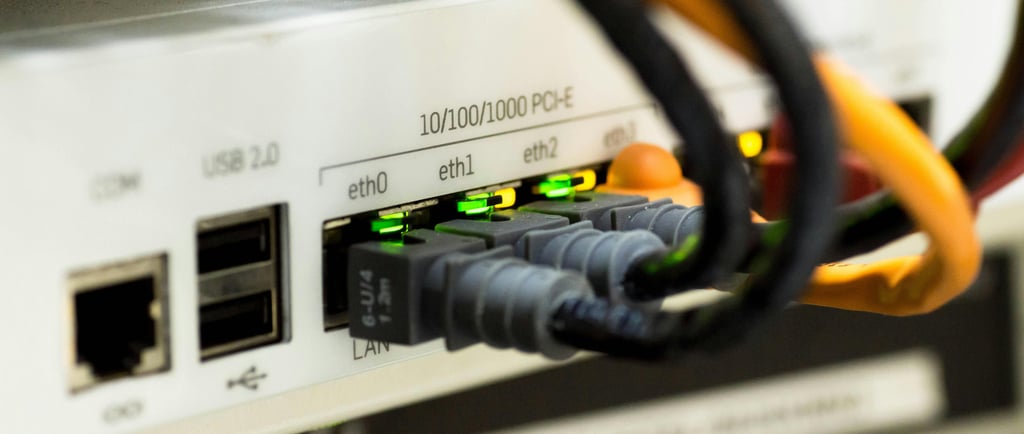
In this comprehensive guide, we outline everything you need to know to build a network that is fast, reliable, and secure. From choosing the right hardware to implementing advanced security controls and resolving common issues, you will find practical, actionable guidance suitable for businesses of any size.
While this guide equips you with the knowledge to substantially improve your network, professional network services can save time, reduce the risk of costly errors, and deliver long-term peace of mind.
Let’s get started and build a network that enables your success rather than limiting it.
Understanding the Basics of Network Setup
Before diving into the technical details, it is important to clarify what a network is and how it works. At its most basic level, a network is a group of connected devices that communicate with one another and share resources. It functions as a digital highway, enabling data to flow between computers, servers, printers, and the internet.
Every functional network is built from several critical components that work together seamlessly:
Modem: Connects your network to your Internet Service Provider (ISP), serving as the gateway between your local network and the internet. It converts the ISP’s signal into a format your network can use.
Router: Acts as the traffic controller for your network. It connects to the modem, directs data between local devices and the internet, assigns local IP addresses, and manages how data packets are routed.
Switch: Essential in business environments, a switch connects multiple devices within the same network, enabling them to communicate directly with one another without passing through the router, improving efficiency and performance.
Access Points: Extend wireless coverage by allowing devices to connect from a wider range of locations. They are especially important in larger spaces or buildings where walls or structural materials interfere with Wi-Fi signals.
Firewall: A core security component that monitors and regulates incoming and outgoing traffic based on defined security rules, protecting your internal network from external threats.
Ethernet Cables: Physical connections that link devices to routers and switches. Wired connections typically provide higher speeds, lower latency, and greater reliability than wireless alternatives.
Ready for Expert Network Support?
Both wired and wireless connections play an important role in a well-designed network:
Wired Networks (Ethernet):
Deliver faster speeds and more stable connections
Offer stronger security, as physical access is required
Eliminate wireless interference
Ideal for stationary, performance-critical devices such as servers, desktop computers, and network storage
Wireless Networks (Wi-Fi):
Provide mobility and flexibility
Reduce cable clutter
Support devices without Ethernet ports, including smartphones and tablets
Well suited for areas where running cables is impractical
Most modern networks use a hybrid model, with core infrastructure and high-performance systems connected via Ethernet, while everyday and mobile devices rely on Wi-Fi.
This balanced approach delivers the best of both worlds: the speed and reliability of wired connections where they matter most, and the convenience of wireless access everywhere else.
Key Components of a Network
Proper planning is the foundation of a successful network deployment. Taking the time to assess your requirements and environment before purchasing equipment helps avoid costly mistakes, scalability issues, and performance bottlenecks in the future.
Wired vs. Wireless Networking


Start by answering the following critical questions:
How many users and devices will connect to the network?
A small office with 5–10 employees has very different requirements than an organization with 50 or more users.What types of activities will the network support?
Basic web browsing and email consume far less bandwidth than video conferencing, cloud-based applications, or large file transfers.When does peak usage occur?
Identifying periods of highest demand helps ensure the network is designed with sufficient capacity.What speed is required?
For most small businesses, a symmetrical internet connection with at least 100 Mbps download and upload speeds is a practical baseline.How critical is reliability?
If downtime results in significant revenue loss or operational disruption, redundant internet connections should be considered.Will users work remotely?
If remote access is required—such as access to file servers, mapped drives, or printers—a business-grade firewall with VPN capabilities becomes essential.Will the business scale in the future?
Growth planning should account for adding access points or other network hardware over time. Equipment should be selected with compatibility, scalability, and seamless integration into the existing ecosystem in mind.
Planning Your Network Infrastructure
Network equipment varies significantly in both cost and capability. While low-cost options may appear attractive, it is important to remember that your network is business-critical infrastructure. Consider the following guidelines when budgeting:
Invest in business-grade equipment for core components such as routers, switches, and primary access points
Plan for a typical equipment lifecycle of three to five years
Allocate approximately 15–25% of the total budget for professional installation if in-house expertise is not available
Account for ongoing maintenance and support costs
Design with scalability in mind to avoid full replacement as the business grows
Assessment of Business Needs
Your physical environment plays a major role in overall network performance. Consider the following factors during planning:
Map the office layout and identify the locations of all devices requiring network connectivity
Identify potential sources of interference, including concrete walls, metal structures, and nearby electronic equipment
Place the server room or network closet in a secure, well-ventilated, and climate-controlled location
Plan cable routes that minimize exposure to electrical interference and physical damage
Ensure sufficient power outlets are available and consider using an Uninterruptible Power Supply (UPS) for critical network equipment
Budget Considerations
The network you deploy today should be able to support your business for several years. To ensure long-term viability:
Plan capacity with a 30–50% margin above current requirements to accommodate growth
Select equipment that supports expansion through additional ports, modular components, or stacking capabilities
Implement structured cabling with capacity that exceeds immediate needs
Maintain thorough documentation to simplify future upgrades, troubleshooting, and expansion
Physical Space Evaluation
The arrangement of your network devices your network topology has a direct impact on performance and reliability:
Star Topology: All devices connect to a central switch or router. This is the most common setup for small businesses.
Mesh Topology: Devices connect to multiple other devices, creating redundant paths for increased reliability.
Tree Topology: A hierarchical structure with branches extending from a central backbone.
Hybrid Topology: Combines elements of different topologies to meet specific requirements.
For most small to medium businesses, a star or hybrid topology centered on a business-grade router or a compact rack of equipment provides the best balance of performance, simplicity, and reliability.
Future Growth Planning
Choosing the right hardware is essential for your network’s success. Properly selected equipment ensures reliable performance today while supporting future growth and scalability.
Network Topology Options
Your router is the centerpiece of your network, making its selection critical:
Speed Rating: For small offices, aim for at least AC1900; ideally, choose Wi-Fi 6 (802.11ax) for future-proofing.
Processor and RAM: Business-grade routers should have a minimum of a dual-core processor and 512 MB of RAM to ensure smooth performance.
Security Features: Look for advanced capabilities such as stateful packet inspection, VPN support, and regular firmware updates.
Management Interface: A user-friendly dashboard simplifies configuration, monitoring, and troubleshooting.
Warranty and Support: Business-grade routers typically offer extended warranties and superior technical support.
For businesses, brands like Cisco, Ubiquiti, and SonicWall are preferable to consumer-grade models. Although more expensive upfront, they deliver enhanced security, reliability, and management features.
Choosing the Right Networking Equipment


Bandwidth needs vary depending on the types of activities your business performs:
Basic Office Work (email, web browsing, occasional file sharing): 5–10 Mbps per user
Cloud-Based Applications: 10–15 Mbps per user
Video Conferencing: 5–10 Mbps per simultaneous call
File Sharing/Backup: 20+ Mbps if performed regularly
VoIP Phone Systems: 0.1 Mbps per line, with high-priority traffic requirements
To plan effectively, multiply these figures by the number of users and add a 30–50% buffer to ensure smooth performance. Keep in mind that upload speed is as important as download speed for businesses using cloud services or hosting video calls.
Selecting the Best Router
Switches are essential for connecting multiple devices within your local network. Key considerations include:
Port Count: Select a switch with more ports than you currently need. Common options include 16, 24, or 48 ports.
Speed: Gigabit (1000 Mbps) is standard, while 10 Gigabit switches are becoming increasingly affordable for core infrastructure.
PoE (Power over Ethernet): Enables devices such as IP phones, access points, and security cameras to receive power through the network cable, simplifying installation.
Managed vs. Unmanaged: Managed switches are more expensive but offer advanced features like VLANs, Quality of Service (QoS), and network monitoring.
For growing businesses, managed PoE switches offer the greatest flexibility and control over the network.
Understanding Bandwidth Needs


To achieve complete wireless coverage, consider the following options:
Wi-Fi Extenders: Repeat the existing signal to extend range, but may reduce overall speed.
Mesh Networks: Use multiple access points that work together to provide seamless, whole-building coverage without degrading performance.
Access Points (APs): Professional-grade APs connect to your wired network and create dedicated Wi-Fi zones.
For most business environments, enterprise access points or mesh systems deliver superior performance compared with simple extenders, offering consistent coverage, smoother handoffs between points, and centralized management.
Network Switches for Expanding Wired Connections
Network security should never be an afterthought:
Hardware Firewalls: Dedicated devices that protect your network perimeter with robust, baseline security.
Next-Generation Firewalls (NGFW): Offer advanced features such as intrusion prevention, application awareness, and threat intelligence.
VPN Support: Enables secure remote access, allowing employees to safely connect to your network from anywhere.
Subscription Services: Many business firewalls include subscription-based security updates to maintain protection against evolving threats.
Even small businesses benefit from business-grade firewalls from vendors like Fortinet, SonicWall, or Cisco. The investment in protection far outweighs the potential costs associated with a data breach.
Wi-Fi Extenders and Mesh Networks
Once planning is complete and your equipment is ready, it’s time to deploy your network. Following these steps will help ensure a smooth and efficient setup.
Firewall and VPN Options


Prepare Your Space: Ensure the server room or network closet is clean, well-ventilated, and has sufficient power outlets.
Install Equipment Racks: Required if you’re using rack-mounted hardware.
Install Core Networking Equipment: Mount your router, switches, and any other essential devices.
Connect to the Internet: Link your primary router or firewall to the modem provided by your ISP.
Connect Network Devices: Use appropriately sized Ethernet cables to connect switches to the router and, if needed, to each other.
Label Everything: Clearly mark all cables and ports to simplify future maintenance and troubleshooting.
Install Wireless Access Points: Place APs in optimal locations based on your site survey; using a Wi-Fi heatmap can help ensure full coverage.
Connect Power: Ideally, use an Uninterruptible Power Supply (UPS) for critical equipment to protect against outages and power fluctuations.
Setting Up Your Network: Step-by-Step Guide
Once your physical setup is complete, it’s time to configure your network for optimal performance and security:
Update Firmware: Ensure all devices are running the latest firmware before proceeding with configuration.
Configure Your Router/Firewall:
Set up WAN connection details provided by your ISP
Change default admin usernames and passwords
Apply basic security settings, such as firewall rules and access controls
Set Up Your Local Network:
Configure the primary LAN
Set up DHCP server settings (IP address range, lease time)
Configure DNS settings for internal and external resolution
Configure Switches:
Assign management IP addresses
Configure VLANs as needed for segmenting traffic
Enable Spanning Tree Protocol (STP) to prevent network loops
Configure PoE settings for devices that require power over Ethernet
These steps ensure your network is both secure and efficiently structured for current and future needs.
Physical Setup Instructions
Proper IP addressing improves both organization and security within your network:
Use Private IP Ranges: Commonly 192.168.x.x for small networks or 10.x.x.x for larger networks.
Implement Subnetting: Divide the network into logical segments to simplify management and improve security.
Reserve IP Ranges: Allocate specific ranges for different device types, such as printers, servers, and workstations.
Assign Static IPs: Use fixed addresses for critical infrastructure devices like printers, servers, and networking equipment to ensure consistent connectivity and easier troubleshooting.
Network Configuration Steps
IP Address Types and Their Use:
Static IPs: Manually assigned and do not change. Ideal for:
Servers and networking equipment
Printers and scanners
Any device that others need to access consistently
Dynamic IPs: Automatically assigned by the DHCP server. Suitable for:
Employee workstations
Mobile devices (laptops, tablets, smartphones)
Guest devices and temporary connections
IP Addressing and Subnetting
Virtual Local Area Networks (VLANs) allow you to logically segment your network, improving both security and performance:
Employee Network: For staff computers and devices
Guest Network: For visitors and temporary access
Voice Network: For VoIP phones, often with QoS prioritization
Management Network: For administrative access to network equipment
IoT Network: For internet-connected devices that do not require access to the main network
Each VLAN operates as a separate network with its own access rules, helping to contain traffic, enhance security, and optimize performance.
Static vs. Dynamic IP Addressing
Quality of Service (QoS) settings help ensure that critical applications receive network priority:
Identify Critical Applications: Determine which services—such as VoIP, video conferencing, and essential business applications—require priority.
Assign Priority Levels: Give the highest priority to real-time applications like voice and video traffic.
Set Bandwidth Limits: Restrict non-essential services from consuming all available bandwidth.
Configure and Test: Implement the QoS policy and verify performance under real-world usage conditions to ensure effectiveness.
VLAN Setup
Quality of Service (QoS) Configuration
Set up your wireless network for optimal performance and security:
Choose appropriate channel settings: Use channels with minimal interference
Set up separate SSIDs for different networks (main, guest, IoT)
Enable WPA3 security where supported, or WPA2-Enterprise for business environments
Implement MAC address filtering for an additional layer of access control
Configure band steering to guide devices to appropriate frequency bands
Set appropriate signal strength to limit coverage beyond your physical premises
Before declaring your network fully operational, thorough testing is critical:
Connectivity Testing: Confirm that all wired and wireless connections are functioning properly.
Speed Testing: Measure actual throughput to ensure it meets expected performance levels.
Application Testing: Run essential business applications to verify they perform reliably over the network.
Security Testing: Check firewall rules, access controls, and any other security configurations.
Failover Testing: For networks with redundant connections, simulate failover scenarios to ensure continuity.
Load Testing: Simulate peak usage conditions to identify potential bottlenecks and performance issues.
WiFi Configuration
Thorough documentation saves countless hours during troubleshooting and upgrades:
Network diagram: Visual representation of your entire network
IP address inventory: Record of all static IP assignments
Configuration backups: Secure copies of all device configurations
Credentials: Securely stored passwords and access information
Vendor contact information: Support numbers and account details
Change log: Record of all modifications made to the network
This documentation should be kept secure but accessible to authorized personnel, with regular updates as changes are made.
Testing Procedures
Once your network is operational, ongoing optimization ensures you maximize performance, reliability, and the value of your investment.
Documentation Importance


Optimizing Wi-Fi Performance:
Router Placement: Position routers or access points centrally, away from walls and metal objects.
Antenna Positioning: Adjust antennas if possible and test different orientations for best coverage.
Channel Selection: Use Wi-Fi analyzer tools to identify the least congested channels.
Frequency Bands: Use 5 GHz for higher speeds at close range, and 2.4 GHz for longer-range coverage.
Reduce Interference: Keep access points away from microwaves, cordless phones, and Bluetooth devices.
Update Firmware: Regular updates often include performance enhancements.
For larger or more complex environments, a professional site survey can help determine the optimal placement of access points and fine-tune configuration settings.
Network Optimization Techniques
Network congestion happens when demand exceeds available capacity. To minimize its impact:
Monitor Bandwidth Usage: Identify applications and users consuming excessive bandwidth.
Implement QoS: Prioritize critical applications during peak usage periods.
Schedule Large Transfers: Perform backups, updates, and large file transfers during off-peak hours.
Upgrade Bottlenecks: Increase capacity at points where congestion occurs.
Use Caching: Implement local caching for frequently accessed content to reduce repeated traffic.
Control Cloud Synchronization: Configure cloud sync applications to run during off-hours to avoid peak congestion.
Improving Wi-Fi Speed and Coverage
Regular Network Performance Testing helps catch issues before they affect users:
Speed Tests: Use tools like Speedtest.net to verify internet connection speeds.
Ping Tests: Measure latency to critical servers and endpoints.
Jitter Testing: Check stability for real-time applications like VoIP or video conferencing.
Throughput Testing: Measure actual data transfer rates within your local network.
Wireless Coverage Mapping: Identify dead zones and areas affected by interference to optimize Wi-Fi placement.
Reducing Network Congestion
Proactive Network Monitoring helps prevent downtime and keeps your network running smoothly:
SNMP Monitoring: Track the health and performance of network devices in real time.
Traffic Analysis: Detect unusual patterns that could indicate issues or security threats.
Alert Systems: Receive notifications about problems before users are impacted.
Performance Trending: Monitor long-term trends to identify gradual degradation.
Bandwidth Monitoring: Watch for unexpected spikes in usage that could affect performance.
Measuring and Testing Network Performance
Network security goes beyond preventing breaches—it’s about creating a resilient environment that safeguards your business assets and ensures continuous, reliable operations.
Network Monitoring Tools
The importance of network security has never been greater:
High Cost of Data Breaches: Businesses face an average loss of $4.45 million per incident (IBM Cost of a Data Breach Report).
Ransomware Threats: Attacks occur every 11 seconds on average, causing downtime of about 21 days.
Small Business Vulnerability: 43% of cyberattacks target small businesses, which often lack sufficient resources to defend themselves.
Regulatory Compliance: Regulations like GDPR, PIPEDA, and PCI DSS impose substantial penalties for security failures.
Best Practices for Network Security
Fundamental Network Security Measures:
Change Default Credentials: Immediately update all default usernames and passwords on network devices.
Implement Strong Password Policies: Require complex passwords and enforce regular changes.
Enable Network Encryption: Use WPA3 for Wi-Fi and encrypt sensitive data in transit.
Keep Firmware Updated: Regularly apply security patches and updates to all devices.
Enable Firewalls: Configure both network-level and host-based firewalls.
Implement Intrusion Detection/Prevention: Monitor network traffic to detect and block suspicious activity.
Segment Your Network: Separate guest, IoT, and business networks to limit potential breaches.
Conduct Regular Security Audits: Periodically review and test your network security posture.
Why Network Security Matters
Multi-Factor Authentication (MFA) significantly enhances security by combining something you know (password) with something you have (mobile device, security key) or something you are (biometric):
Remote Access: Require MFA for all users connecting to your network remotely.
Administrative Access: Enforce MFA for administrators managing network equipment.
Critical Applications: Use MFA for key business applications and services.
Sensitive Systems: Consider biometric authentication for highly sensitive or high-risk systems.
Must-Do Security Practices
Virtual Private Networks (VPNs) provide secure tunnels for remote access and interoffice connections:
Site-to-Site VPNs: Securely connect multiple office locations over the internet.
SSL VPNs: Allow individual users to connect securely from remote locations.
Always-On VPNs: Enforce security policies consistently on company devices.
Split Tunneling: Optimizes performance by sending only selected traffic through the VPN while allowing trusted applications to use the regular internet connection.
Multi-Factor Authentication (MFA)
Creating Security Zones strengthens network protection by isolating traffic and controlling access:
Separate VLANs: Assign different VLANs for varying security levels.
Access Control Lists (ACLs): Enforce rules between network segments to control traffic flow.
Guest Isolation: Keep guest traffic separate from core business systems.
Automatic Quarantine: Isolate devices that exhibit suspicious behavior or potential threats.
Virtual Private Networks (VPNs)
Technology alone cannot ensure security—employees play a critical role:
Security Awareness Training: Provide regular training for all staff.
Phishing Simulations: Test and reinforce employee awareness of phishing attacks.
Clear Security Policies: Ensure policies are easy to understand and follow.
Incident Reporting: Encourage prompt reporting of suspicious activities.
Even the most secure technical systems remain vulnerable if users aren’t properly trained and supported. For a deeper dive, refer to our guide on protecting your business from cybersecurity threats.
Network Segmentation
Even the most well-designed networks can experience issues. Efficient troubleshooting helps minimize downtime, reduce frustration, and keep your business running smoothly.
Employee Security Training
Troubleshooting Slow Network Performance:
Run a Speed Test: Test from your router to determine whether the issue lies with your internet connection or internal network. This helps isolate Wi-Fi problems from ISP issues.
Check for Bandwidth Hogs: Use monitoring tools to identify users or applications consuming excessive bandwidth.
Restart Networking Equipment: Reboot routers, switches, or access points to clear temporary issues.
Check for Interference: Nearby electronic devices can degrade wireless performance—relocate or adjust equipment as needed.
Verify QoS Settings: Ensure that critical applications are receiving the proper priority.
Contact Your ISP: If speeds consistently fall below your service plan, escalate the issue to your provider.
Common Network Problems and How to Fix Them
When wireless devices can’t connect or frequently disconnect:
Check signal strength: Use WiFi analyzer tools to verify coverage where problems occur
Look for interference: Other wireless networks, microwave ovens, and Bluetooth devices can cause problems
Check channel width: A higher width can provide higher speeds but shorter broadcast range, while a lower width provides slightly lower speeds, while range is improved
Verify client compatibility: Older devices may not support newer wireless standards
Update drivers and firmware: Both access points and client devices need current software
Check for overloaded access points: Too many devices on a single access point can cause issues
Examine band steering settings: Ensure devices are connecting to appropriate frequency bands
Slow Internet Speed Troubleshooting
Troubleshooting Potential Security Issues:
Scan for Unauthorized Devices: Identify any unknown or rogue devices on your network.
Review Access Logs: Look for unusual login attempts or abnormal access patterns.
Verify Firewall Rules: Ensure all security policies are correctly enforced.
Run Vulnerability Scans: Detect and address potential security weaknesses.
Monitor Traffic Patterns: Large or unexpected outbound traffic may indicate a compromise.
Validate Wireless Security: Confirm that all Wi-Fi networks use strong encryption and secure configurations.
Wi-Fi Connectivity Issues
Certain situations require expert intervention:
Persistent performance issues that cannot be resolved through basic troubleshooting
Suspected security breaches or unusual network behavior
Complex configuration changes with potential impact on business operations
Hardware failures needing specialized repair knowledge
Major network expansions or redesigns
Professional support can diagnose problems more efficiently and implement solutions that address the root cause rather than just the symptoms. Services like remote monitoring and management can also save time and reduce costs while maintaining network reliability.
Network Security Concerns
While this guide equips you to enhance your network, there are strong reasons to consider professional assistance for optimal results, efficiency, and security.
When to Call Professional Help

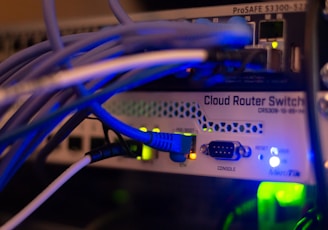
Advantages of Expert Network Implementation:
Proven Designs: Benefit from solutions refined through experience across diverse environments.
Comprehensive Documentation: Ensures easier future maintenance and troubleshooting.
Optimized Configurations: Balance performance, security, and reliability effectively.
Reduced Downtime Risk: Thorough testing before deployment minimizes potential disruptions.
Knowledge Transfer: Your team gains valuable skills during the implementation process.
Professional Network Services
When Ongoing Professional Network Management Makes Sense:
Lack of dedicated in-house IT expertise for network management
High dependence on network reliability for business operations
Regulatory or compliance requirements that demand strict security and documentation
Desire for predictable IT costs instead of unexpected emergency expenses
Allowing your team to focus on core business activities rather than infrastructure maintenance
Professional IT support services deliver 24/7 monitoring, regular maintenance, and rapid response to address issues before they impact your business.
Benefits of Professional Setup
Evaluating Professional Network Services:
Compare Costs: Assess the expense of planned professional support versus reactive emergency assistance.
Value of Avoided Downtime: Quantify potential losses prevented by reliable network operations.
Productivity Gains: Consider improvements from a well-optimized and efficiently running network.
Risk Reduction: Factor in enhanced security and reliability that mitigate business risks.
Opportunity Costs: Evaluate the benefits of freeing internal resources from network management tasks.
For many businesses, professional network services reduce overall costs while delivering better performance and security outcomes.
When to Consider Managed Services
Choosing the Right Professional Network Partner:
Proven Expertise: Ensure they have experience with the technologies your business uses.
Structured Approach: Look for a methodical process for design, implementation, and documentation.
Clear Service Level Agreements (SLAs): Define response times, responsibilities, and expectations.
Proactive Support: Prioritize monitoring and maintenance over reactive, break-fix services.
Security Focus: Include regular assessments, updates, and adherence to best practices.
Client References: Check feedback from similar businesses to gauge reliability and performance.
For more guidance, see our Beginner’s Guide to IT Support Services.
Cost-Benefit Analysis
Network maintenance isn’t a one-time event but an ongoing process that preserves performance and security.
What to Look for in a Service Provider


Maintenance and Regular Updates
Regular Network Maintenance Calendar:
Daily: Review logs and verify backups.
Weekly: Perform performance checks and run security scans.
Monthly: Apply firmware updates and back up configurations.
Quarterly: Conduct comprehensive security audits and optimize performance.
Annual: Perform a full network review and plan for future capacity needs.
Key Network Maintenance Activities:
Security Log Review: Monitor for unauthorized access attempts or unusual activity.
Performance Monitoring: Track trends to detect potential issues before they escalate.
Configuration Validation: Ensure network settings remain correct and consistent.
Physical Inspection: Check for damaged cables, overheating equipment, or other hardware issues.
User Access Review: Confirm that access rights remain appropriate and up to date.
Maintenance Schedule Creation
Keeping Your Network Current:
Track Firmware Releases: Monitor updates for all network devices.
Test Updates: Apply updates in a controlled environment whenever possible.
Schedule Update Windows: Minimize disruption by planning updates during low-usage periods.
Maintain Documentation: Record all updates applied for future reference.
Follow a Rollback Plan: Be prepared to revert changes if updates cause unexpected issues.
Important Regular Checks
Protecting Network Configurations:
Regular Backups: Save configurations for all network devices on a consistent schedule.
Secure Storage: Keep backups in multiple, secure locations.
Test Restorations: Periodically verify that backups can be restored successfully.
Document Processes: Ensure backup procedures are clearly documented for anyone to follow.
Integrate into Business Continuity: Include network configurations in your overall disaster recovery and continuity plans.
Update Management
Preparing for the Unexpected:
Document Recovery Procedures: Outline steps for different network failure scenarios.
Prioritize Critical Components: Identify devices and systems that require the fastest recovery.
Maintain Spare Equipment: Keep backup hardware for essential infrastructure.
Test Recovery Plans: Conduct tabletop exercises or simulations to validate procedures.
Cross-Train Team Members: Ensure multiple staff members are familiar with recovery processes.
Backup Strategies
Building and Maintaining an Optimized Network:
Creating a reliable, high-performance network requires careful planning, the right equipment, and ongoing attention. The most effective networks balance performance, security, and reliability while accommodating future growth.
Key Principles to Remember:
Plan Thoroughly: Base your design on your business’s specific needs.
Invest in Quality Equipment: Choose devices that reliably support current and future operations.
Implement Comprehensive Security: Integrate strong security measures from the outset.
Document Everything: Maintain detailed records to simplify troubleshooting and maintenance.
Monitor Performance: Identify and address issues before they affect users.
Maintain Regular Updates: Keep firmware, software, and configurations current to preserve security and performance.
Consider Professional Support: Engage experts for complex setups or ongoing management.
A well-designed network is more than infrastructure—it’s a strategic asset that enables your business to operate efficiently, securely, and reliably.
Disaster Recovery Planning
While this guide gives you a strong foundation for network setup and optimization, every business has unique requirements. If you’re in QuickFixIT Pro and need professional network support, QuickfixIT Pro is here to help.
Our team specializes in:
Professional Network Installation: Customized to meet your business’s specific needs.
Comprehensive IT Support: Keeping your technology running efficiently and reliably.
Security Assessments and Implementation: Protecting your critical data from threats.
Proactive Monitoring and Maintenance: Identifying and resolving issues before they impact operations.
Key Takeaways
Schedule a consultation to explore how we can help optimize your network for maximum performance, security, and reliability. You can also contact us with any questions about your specific network challenges.
Don’t let network issues slow your business partner with QuickfixIT Pro for technology that works as hard as you do.
Contact
Fast, friendly IT support in Edmonton.
Email : contact@quickfixitpro.com
Phone : 1-825-767-2829
© 2026. QuickFixIT Pro - All rights reserved.
Certified IT & Computer Support
Proudly Serving Edmonton & Surrounding Areas
Our Service