How to Know If It’s Your Network Card (Ethernet/Wi-Fi) Causing Speed Drops
Slow internet issues are not always caused by your router or internet service provider. Intermittent connectivity, freezing video calls, and sluggish downloads may be signs of a failing network card. In this post, learn how to identify network adapter problems, avoid unnecessary troubleshooting costs, and determine whether the issue lies with your computer or your network infrastructure before it disrupts your work or data.
QuickFixIT Pro
Slow internet is one of the most frustrating computer issues you can encounter. Video calls freeze at critical moments, downloads creep along at painfully slow speeds, and streaming services buffer endlessly—even though your internet plan promises high-speed performance.
You have restarted your router multiple times, contacted your internet service provider, and even upgraded your service plan, yet the problem persists. In many cases, the issue is not the internet connection itself but a failing network card inside your computer.
Network card problems are particularly difficult to diagnose because their symptoms closely resemble router malfunctions, ISP service disruptions, and even software-related conflicts.
Unlike a failed hard drive or a graphics card with obvious visual symptoms, a deteriorating network adapter produces intermittent and unpredictable connectivity issues. These inconsistencies can send you down weeks of unnecessary troubleshooting with no clear resolution.
Knowing how to accurately identify network card issues can save you from replacing perfectly functional routers, paying for avoidable ISP service calls, and spending countless hours on ineffective diagnostics.
This article will guide you through the steps to confidently determine whether your network card is the root cause of your connectivity problems or if the fault lies elsewhere in your network infrastructure.
Early detection is critical. A failing network adapter does more than slow your connection—it can cause data loss during file transfers, corrupt downloads, and interrupt essential business communications at the worst possible time.
Understanding Your Network Hardware
Before exploring diagnostic methods, it is important to understand the role of a network card and how different types of network adapters can fail in distinct ways.
What is a Network Card?
A network interface card (NIC), often referred to as a network card or network adapter, is the hardware component that allows your computer to connect to local networks and the internet. It functions as a translator, converting data from your system into signals that can travel over network cables or wirelessly, then translating incoming signals back into data your computer can process.
Most modern computers include built-in network adapters integrated directly into the motherboard. These integrated adapters typically support both Ethernet (wired) and Wi-Fi (wireless) connections; however, they are separate components and can fail independently of one another.
Desktop systems may also use dedicated PCIe network cards to achieve better performance or expanded connectivity, while USB network adapters provide a convenient, portable networking solution for both laptops and desktops.


Ethernet vs. WiFi Adapters
Understanding the differences between wired and wireless network connections is essential for determining which type of adapter may be responsible for your connectivity issues.
Ethernet adapters provide wired connections through network cables and deliver the most reliable and consistent performance. They are far less susceptible to interference, offer lower latency, and typically allow you to achieve the full speed of your internet connection without degradation.
When Ethernet adapters fail, the symptoms are usually obvious such as a complete loss of connectivity or significantly reduced speeds making these issues relatively straightforward to identify.
Wi-Fi adapters, by contrast, manage wireless connections and are inherently more complex. They must contend with signal interference, distance limitations, and competing wireless devices, meaning performance problems can just as easily stem from environmental conditions as from hardware failure.
Failures in Wi-Fi adapters often appear as intermittent disconnections, weakened signal strength, or an inability to maintain a stable connection. These symptoms are commonly mistaken for router malfunctions or general wireless interference.
One key diagnostic advantage of systems equipped with both adapter types is the ability to test each independently. If Wi-Fi connectivity is unstable while Ethernet works flawlessly, the issue is likely isolated to the wireless adapter.
Conversely, if both wired and wireless connections exhibit the same problems, the root cause is more likely related to your router, internet service provider, or software configuration rather than the network hardware itself.
Signs & Symptoms of Network Card Problems
Identifying network card specific symptoms requires separating issues that affect only your computer from problems that impact the entire network.
A key indicator of network card failure is that connectivity issues persist when your computer is connected to different networks, while other devices on the same network continue to function normally.
Intermittent Connection Drops
One of the most common indicators of a failing network card is intermittent connection loss that appears to occur at random. Your network icon may show a stable connection one moment, then switch to “no internet access” the next, only to reconnect on its own seconds or minutes later.
These disruptions often feel random because, in many cases, they are. As network card components degrade, their behavior becomes increasingly unpredictable.
What differentiates network card–related connection drops from router or ISP issues is their isolation to a single device. When a network adapter is failing, your computer loses connectivity while other devices such as phones, tablets, and additional computers remain fully connected to the same network.
You may observe websites timing out mid-load, video calls disconnecting without warning, or online games dropping unexpectedly, all occurring exclusively on the affected computer.
The most reliable diagnostic indicator is whether these connection drops occur across multiple networks. If your computer experiences the same intermittent disconnections at home, at work, in public Wi-Fi environments, and even on a mobile hotspot, the issue is clearly tied to the device itself strongly indicating a faulty network card rather than a specific router or network.
Consistently Slow Speeds on One Device
One of the clearest indicators of network card failure is a significant speed discrepancy between one computer and other devices connected to the same network.
For example, a speed test on your laptop may show only 10 Mbps, while a test on your phone from the same location reaches 200 Mbps the full speed of your internet plan.
This disparity confirms that your network infrastructure is operating correctly and delivering expected performance to devices with functioning network adapters. The bottleneck exists specifically within the affected computer’s network hardware or its associated drivers.
To validate this, test multiple devices simultaneously and document the results for direct comparison.
Hardware degradation in network cards often presents as a gradual decline in performance rather than an abrupt failure. An adapter that once delivered full gigabit speeds over Ethernet may now be limited to 100 Mbps or less. Likewise, a Wi-Fi connection that previously achieved 300 Mbps may struggle to exceed 50 Mbps, even when the device is positioned close to the router.
This steady reduction in throughput is a strong indicator of deteriorating network card components rather than a sudden configuration or software change.
WiFi Connected But No Internet Access
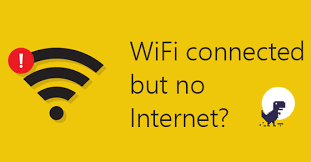
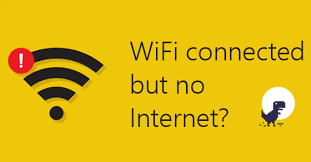
One of the most frustrating symptoms of network adapter issues is when your computer shows a strong connection to a Wi-Fi network but has no actual internet access.
The system may display messages such as “Connected, no internet” or show a yellow warning icon on the network indicator, while other devices on the same network browse the web without issue.
This condition occurs when the network adapter successfully connects to the router but fails to properly communicate beyond it to reach the internet.
The cause may be software-related, such as corrupted or unstable network drivers that cannot reliably handle internet protocol traffic, or it may stem from hardware faults that prevent the adapter from processing certain types of network data correctly.
Driver-related issues can often be resolved through driver reinstallation or updates. However, persistent “no internet” errors that continue despite multiple driver updates, network resets, and troubleshooting efforts typically point to an underlying hardware failure.
The timing and consistency of the issue are also important. If the problem occurs intermittently and only temporarily resolves after restarting the system, the likelihood of network adapter hardware failure increases significantly.
Ethernet Works But WiFi Doesn’t (or Vice Versa)
When one connection type operates flawlessly while the other fails entirely, you have a clear and highly reliable diagnostic indicator.
This situation isolates the issue to a specific network adapter, eliminating uncertainty around the router, internet service provider, or software configuration.
For example, a laptop that connects without issue via an Ethernet cable but cannot detect any Wi-Fi networks strongly indicates a failed wireless adapter. The functioning Ethernet connection confirms that the internet service, router, and core networking software are working correctly, leaving the Wi-Fi hardware as the point of failure.
Conversely, if Wi-Fi performs normally but wired Ethernet connections fail to establish or cannot negotiate proper speeds, the Ethernet port or wired network adapter is likely defective.
Desktop systems with separate Ethernet and Wi-Fi adapters may exhibit this behavior when one adapter deteriorates faster than the other or sustains physical damage.
Similarly, laptops with dual connectivity can show these symptoms if the internal Wi-Fi antenna becomes disconnected or if the Ethernet port is damaged from repeated cable insertions.
Speed Degradation Over Time
Gradual declines in network performance are often easier to overlook than sudden failures, yet they are just as significant as early warning signs of impending network card failure.
You may not immediately notice that downloads now take several minutes instead of seconds, or that video calls frequently buffer despite previously being stable and clear.
The most effective way to identify this pattern is to track network performance over time. Run speed tests regularly and record the results, watching for consistent downward trends that cannot be attributed to changes in your ISP’s service or increased network congestion. Performance that steadily degrades across different networks and conditions typically indicates deteriorating network adapter hardware.
Temperature-related performance changes offer further diagnostic insight. If network speeds are acceptable immediately after startup but progressively decline as the system heats up during normal use, overheating network card components may be failing.
This behavior strongly points to hardware-related issues rather than software or network problems, as temperature has a direct and measurable impact on the reliability of aging computer components.
Network Adapter Not Recognized in Device Manager
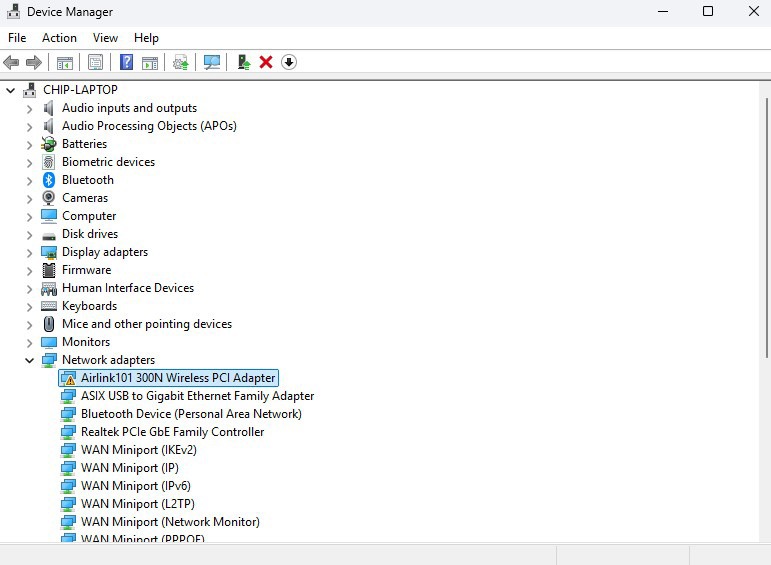
When Windows cannot detect or properly recognize your network adapter, the issue is typically caused by either driver corruption or complete hardware failure.
Opening Device Manager and seeing the network adapter flagged with a yellow warning triangle, listed as an “Unknown device,” or missing entirely signals a serious problem that requires attention.
Driver corruption can prevent proper detection, but these issues usually resolve after a clean driver reinstallation. However, if the network adapter repeatedly disappears from Device Manager, only reappears after system restarts, or continues to display errors despite multiple driver installations, the hardware itself is likely failing. This pattern of intermittent recognition often precedes total adapter failure by days or weeks.
It is also important to review any error codes shown in the device’s properties within Device Manager. Error Code 10 (“This device cannot start”) commonly points to driver-related issues, while Error Code 43 (“Windows has stopped this device”) more frequently indicates hardware failure. Error Code 52, which states that Windows cannot verify the digital signature, typically reflects a driver installation or compatibility problem rather than defective hardware.
Understanding these error codes helps distinguish between software issues that can be resolved through troubleshooting and hardware failures that require component replacement.
Understanding why network cards fail is essential for accurate diagnosis and for preventing similar issues in the future.
Unlike hard drives, which wear out through mechanical use, or storage devices that fail primarily due to age, network cards most often fail as a result of electrical stress, heat damage, or physical impact.
Common Causes of Network Card Failure
Driver Corruption and Compatibility Issues
Before concluding that you are dealing with hardware failure, driver issues should be considered the most likely cause of network adapter problems. Driver corruption is surprisingly common and can closely mimic the symptoms of failing hardware, yet it is far easier and less costly to resolve.
Windows updates frequently introduce network driver conflicts, particularly when the operating system installs generic drivers that do not fully support the specific capabilities of your network adapter.
Software conflicts involving network utilities, VPN clients, and system updates can also corrupt driver files, leading to connectivity problems that appear hardware-related but are often resolved through a clean driver reinstallation.
One advantage of driver-related issues is their relative ease of diagnosis and repair. If network performance improves temporarily after reinstalling the driver but deteriorates again days or weeks later, the root cause is more likely software incompatibility or ongoing conflicts rather than physical hardware failure.
By contrast, if repeated clean driver installations obtained directly from the hardware manufacturer fail to restore stable connectivity, the likelihood of an underlying hardware failure increases significantly.
Physical damage to network ports and adapters is especially common with Ethernet connections on laptops.
The plastic retention clips that secure Ethernet cables can break easily, bent pins inside the Ethernet port can prevent proper contact, and repeated cable insertions gradually wear down the port’s electrical contacts. Once physical damage occurs, the Ethernet connection may function intermittently or fail entirely, regardless of driver condition.
Wi-Fi adapters in laptops have their own set of physical vulnerabilities. The wireless antenna cables typically route through the display hinge, and years of opening and closing the lid can loosen or damage these connections.
As a result, a laptop that shows steadily weakening Wi-Fi signal strength despite performing well when new may simply have antenna cables that have become partially disconnected through normal use.
USB network adapters are particularly susceptible to physical stress. They endure strain at the USB port and can be damaged by impacts, drops, or by remaining plugged in while the laptop is moved.
A USB Wi-Fi adapter that becomes increasingly unstable or requires frequent reseating to maintain a connection has likely suffered physical damage that will continue to worsen over time.
Physical Damage and Port Wear
Overheating and Thermal Issues
Network cards generate heat during normal operation, and inadequate cooling can lead to premature failure.
Built-in network adapters rely on the motherboard’s overall cooling system, meaning poor airflow, obstructed vents, or dust buildup can cause network hardware to overheat alongside other components.
Overheating typically presents as network performance that degrades after extended use and improves once the system cools. You may notice excellent network speeds when you first begin working, followed by a gradual decline after hours of continuous operation.
Connection stability can also worsen during demanding tasks that increase system temperatures, then recover when the computer is idle and able to cool down.
PCIe network cards in desktop systems are especially susceptible to overheating in cases with inadequate ventilation. High-performance adapters equipped with heatsinks can still overheat in restrictive case layouts or when positioned near other heat-generating components such as graphics cards and power supplies.
Routine system cleaning and monitoring how temperature affects performance play an important role in preventing thermal damage to network hardware.
Power Supply and Electrical Issues
Network cards depend on clean and stable power delivery to operate correctly, and power-related issues can produce symptoms that closely resemble hardware failure.
Insufficient power to PCIe slots can prevent expansion network cards from functioning reliably, while voltage fluctuations from aging or underperforming power supplies may cause intermittent network adapter failures.
Systems with marginal power supplies often exhibit network problems that align with periods of high system load. Network performance may degrade or connections may drop entirely when launching games, rendering video, or running multiple resource-intensive applications situations that place increased demand on the power supply.
If network stability improves after reducing system load or disabling power-hungry components, power delivery should be investigated as a potential root cause.
Electrical surges caused by power outages, lightning strikes, or unstable building wiring can also permanently damage network cards. Unlike gradual degradation that develops over time, surge-related damage typically results in sudden and complete adapter failure, where the network stops functioning without warning.
This type of failure pattern strongly supports evaluating power supply health as part of a thorough diagnostic process.
Like all electronic components, network cards have finite service lives influenced by component quality, usage intensity, and environmental conditions.
Under normal operating circumstances, most network adapters last between 5 and 10 years, although actual longevity varies widely depending on manufacturing quality and how heavily the hardware is used.
Consumer-grade network hardware found in laptops generally fails sooner than enterprise-grade components used in business desktops. This difference is due not only to component quality, but also to the harsher conditions laptops endure.
Portable systems are exposed to greater thermal stress from changing environments, physical stress from movement and vibration, and electrical stress from inconsistent power delivery, all of which accelerate component wear.
When deciding whether to replace only the network adapter or the entire computer, it is important to evaluate the system’s age as a whole. A 7-year-old laptop with a failing network adapter is likely to have other components nearing the end of their usable life.
Replacing a network card is often a practical solution for relatively new systems, while older computers may be better candidates for full replacement.
Age and Component Wear
A systematic diagnostic approach removes guesswork and helps avoid wasting time on ineffective solutions. By following these steps in sequence and documenting your findings, you can clearly determine whether the issue stems from a failing network card or from another part of your network environment.
Step-by-Step Diagnostic Process


Initial Speed Testing and Documentation
Checking Network Adapter Status in Windows
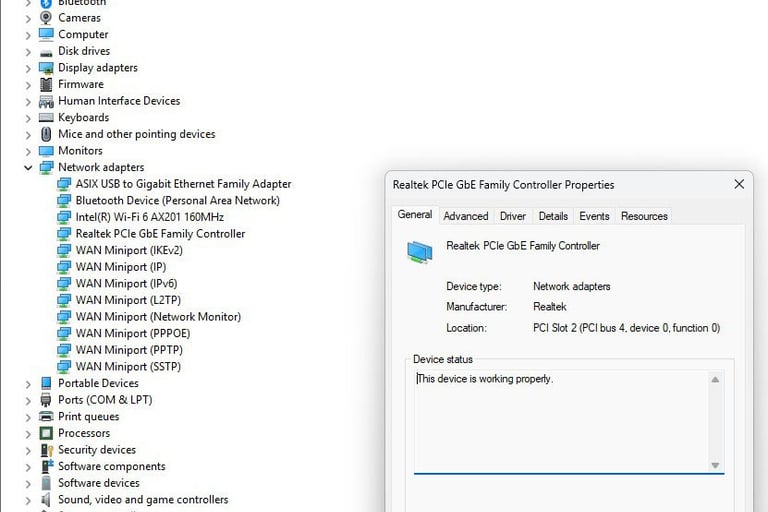
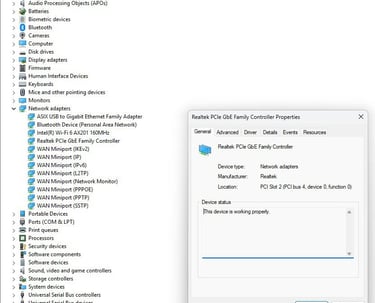
Device Manager is an essential tool for diagnosing network adapter health and verifying driver status.
To open Device Manager, press Windows key + X and select Device Manager, or type devmgmt.msc into the Windows search bar and press Enter.
Expand the Network adapters section to view all installed network devices. Healthy adapters display standard icons and descriptive names, such as Intel Wi-Fi 6 AX200 or Realtek PCIe GbE Family Controller.
Warning indicators include:
Yellow triangle icons signaling driver issues
Red X marks indicating disabled devices
Generic names like “Unknown device,” which suggest recognition failures
Right-click your network adapter and select Properties to access detailed status information. On the General tab, check whether the device is reported as working properly or displays specific error codes.
Use the Driver tab to review the driver version, date, and manufacturer. Outdated drivers may indicate the adapter has not been maintained, while very recent driver updates that coincide with connectivity issues could point to a problematic update.
Testing Network Adapter Performance
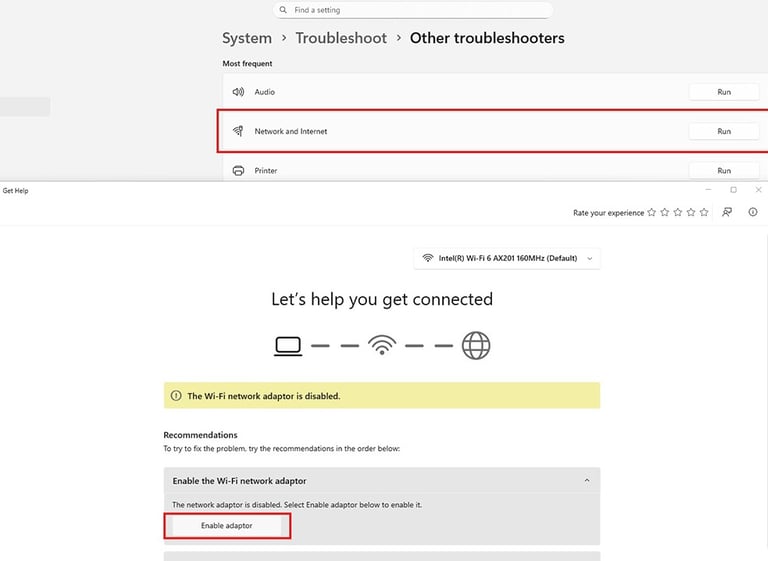
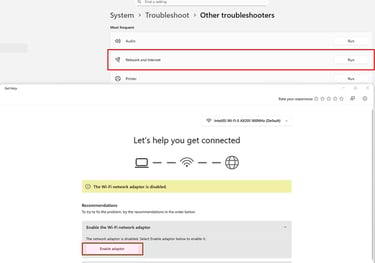
Windows provides built-in troubleshooting tools that can automatically detect common network issues.
To run the network troubleshooter, navigate to Settings > Update & Security > Troubleshoot > Additional troubleshooters > Internet Connections, and follow the prompts. While these automated tools rarely resolve serious hardware failures, they can highlight configuration problems and provide valuable diagnostic information.
You can also monitor real-time network performance using Task Manager. Press Ctrl + Shift + Esc to open Task Manager, go to the Performance tab, and select your network adapter from the sidebar. Observe network utilization, link speed, and throughput while browsing, downloading, or streaming. For example, a gigabit Ethernet adapter should report a link speed of 1 Gbps; slower speeds may indicate negotiation issues or failing hardware.
Built-in tools like ping are useful for identifying packet loss and transmission errors. High packet loss during simple network operations suggests that the adapter is unable to reliably send or receive data. Consistent latency spikes or irregular ping times to local network devices rather than internet destinations also point to adapter issues rather than ISP problems.
You can further isolate the problem by connecting directly to your modem via Ethernet, bypassing the router. If full speeds are achieved in this setup, the issue likely lies with the router. Conversely, if speeds remain slow or unstable, the problem is almost certainly related to the computer’s network hardware or drivers.
Driver Troubleshooting Steps
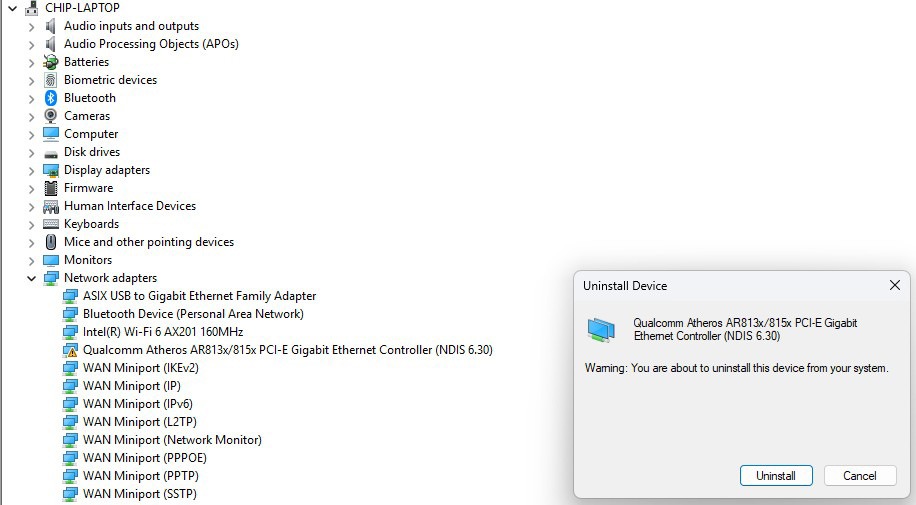
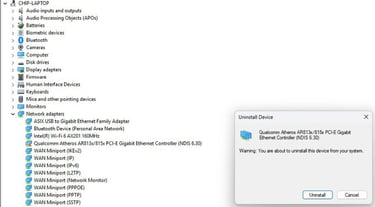
Driver issues are the most common cause of network connectivity problems, so thorough driver troubleshooting is essential before assuming hardware failure.
Start by identifying the exact model of your network adapter in Device Manager, then visit the manufacturer’s website—Intel, Realtek, Qualcomm, or your computer manufacturer for integrated adapters to download the correct driver for your specific hardware and Windows version.
Avoid generic driver update utilities or third-party download sites, as these can install incorrect or outdated drivers, often creating more problems than they solve. Manufacturer-provided drivers are tested and certified for your hardware.
Perform a clean driver installation by first uninstalling the existing driver completely: right-click your network adapter in Device Manager, select Uninstall device, and check Delete the driver software for this device if the option is available. Restart your computer, then install the freshly downloaded driver. This ensures no corrupted files from the old installation interfere with the new driver.
If connectivity issues began after a recent driver update, you can attempt a rollback. In Device Manager, right-click your network adapter, select Properties, go to the Driver tab, and choose Roll Back Driver if available. This option restores the previous driver version when Windows retains it and can resolve bugs or compatibility issues introduced by newer drivers.
For persistent driver problems that cannot be resolved through standard methods, specialized tools like Snappy Driver Installer Origin can completely purge all traces of old drivers, including registry entries, cached files, and system configurations. This creates a clean slate for a fresh driver installation, maximizing the chances of restoring network functionality.
Hardware Inspection and Testing
Physical inspection can uncover problems that software diagnostics often miss entirely.
With the computer powered off and unplugged, examine Ethernet ports for broken retention clips, bent pins, or debris. Use a flashlight to inspect the eight gold pins—they should be straight, evenly spaced, and free of corrosion or damage.
For USB network adapters, check for loose connections, cracked housings, or damaged connectors. Test the adapter in multiple USB ports to rule out port-specific issues. Note that USB 3.0 ports (usually blue) offer much higher performance than USB 2.0 ports (black), so use an appropriate port when testing high-speed adapters.
Desktop users with PCIe network cards should power down, unplug the system, and open the case. Remove the network card, inspect the PCIe connector for dust or debris, clean with compressed air if necessary, and reseat the card firmly. Ensure any supplemental power connectors are fully seated if required.
Introducing a known-good adapter provides a definitive test. Purchase an inexpensive USB Wi-Fi or Ethernet adapter and see if it resolves connectivity issues. If the USB adapter works flawlessly while the integrated adapter fails, you have confirmed hardware failure. This simple $20–$30 test can save hours of troubleshooting and provides a temporary solution while planning repairs.
Finally, test your computer on different networks to see if the issue follows the device. Try a friend’s network, public Wi-Fi, or a mobile hotspot. If problems persist across all networks while other devices work normally, the network card is clearly at fault. If the computer works on some networks but not others, investigate router compatibility or network configuration issues before concluding hardware failure.
Accurate diagnosis depends on distinguishing network card failures from the many other issues that produce similar symptoms. By systematically comparing conditions and testing alternatives, you can eliminate potential causes until the underlying problem is clearly identified.
Distinguishing Network Card Issues from Other Problems
Network Card vs. Router Problems
Router issues typically affect all connected devices at once, whereas network card problems are isolated to the specific computer with the failing adapter.
For example, if your laptop experiences slow speeds or intermittent drops while your smartphone, tablet, and other computers perform normally on the same network, the network card in your laptop is the likely culprit not the router.
Router-related problems often follow predictable, time-based patterns. If all devices slow down during evening peak hours and return to normal later at night, this indicates ISP congestion or router overload, rather than a network card failure. Router issues frequently improve after a reboot, whereas network card failures persist regardless of router restarts.
Wi-Fi signal patterns can also help distinguish between adapter and router issues. If your computer consistently shows weak Wi-Fi signal throughout your home while other devices report strong signals in the same locations, the adapter’s receive sensitivity may have degraded. Conversely, if all devices show weak signals only when far from the router, the problem is likely the router’s transmit power or antenna placement.
Testing your computer on multiple networks provides definitive separation. If the same connectivity problems occur at home, at work, in public Wi-Fi environments, and on mobile hotspots, the issue clearly follows the device, confirming a network card failure rather than a router or network infrastructure problem.
Network Card vs. ISP Service Issues
ISP service issues affect the entire network, causing all connected devices to experience the same problems simultaneously.
To check for ISP problems, consult service status pages, social media updates, or ask neighbors if they are experiencing similar connectivity issues. Widespread disruptions indicate an ISP problem rather than a failing network card.
Direct modem testing helps eliminate ISP variables from your diagnosis. Connect your computer directly to the modem via Ethernet, bypassing the router, and run speed tests to evaluate connection stability.
If the direct modem connection delivers full promised speeds while router connections remain slow, the issue lies with the router or Wi-Fi network not the ISP or your network card.
If the direct modem connection still shows slow speeds or instability on your computer while other devices perform normally when connected to the router, the network card is likely at fault.
Comparing ISP-to-modem speeds versus modem-to-computer speeds provides additional diagnostic insight. Most modems have status pages accessible via a web browser that display the connection speed between the modem and the ISP.
If the modem reports speeds matching your service plan but your computer receives significantly lower speeds, the bottleneck exists between the modem and your computer, pointing to the router, network card, or driver issues rather than an ISP problem.
Network Card vs. Software/Virus Issues
Malware and background software can consume bandwidth and create connectivity issues that closely resemble network card failure.
Open Task Manager and monitor network usage when experiencing slow speeds. Unfamiliar processes using significant bandwidth should be investigated before assuming a hardware problem.
High CPU usage often accompanies software-related network issues. Viruses, crypto-mining malware, or poorly behaving applications can strain system resources, slowing overall performance—including network activity. Sustained high CPU usage without known demanding applications is a strong indicator of software problems rather than network card failure.
Using Safe Mode with Networking provides a controlled environment that removes third-party software variables. Restart Windows in this mode and test network performance. If problems disappear in Safe Mode but reappear in normal mode, software conflicts—not hardware—are the likely cause. You can then systematically disable startup programs and services to isolate the offending application.
A fresh Windows installation offers the most definitive software-based diagnostic test. If other troubleshooting steps fail and uncertainty remains, back up your important data and perform a clean installation.
If network issues persist immediately after a clean install using manufacturer-provided drivers, hardware failure is almost certain.
If connectivity is restored, corrupted system files or software conflicts were responsible for the previous problems.
Network Card vs. Motherboard Problems
Motherboard failures generally affect multiple system functions simultaneously, rather than only network connectivity.
If your computer exhibits USB port malfunctions, audio issues, system instability, and network problems all at once, a motherboard failure is more likely than a simple network card issue.
PCIe slot problems on desktop motherboards can prevent expansion network cards from operating properly without indicating a card failure. Test the network card in an alternate PCIe slot if available. If the card works in one slot but not another, the issue lies with the motherboard’s PCIe slot, not the network card, saving unnecessary replacement costs.
Testing with a USB network adapter provides a straightforward way to bypass motherboard-integrated network hardware. If a USB Wi-Fi or Ethernet adapter works flawlessly while the built-in network fails, this confirms failure of the motherboard’s integrated network circuitry while demonstrating that the rest of the network infrastructure is functioning correctly. This approach clearly distinguishes between integrated network failure and broader motherboard issues.
Integrated network adapters can fail independently of other motherboard components. The network chipset may stop functioning while the CPU socket, RAM slots, USB controllers, and audio continue to work normally.
This selective failure pattern is common, meaning an integrated network card failure alone does not automatically justify replacing the entire motherboard—unless other system symptoms are present.
Solutions and Fixes
Once network card issues have been confirmed, the appropriate solution depends on the underlying cause—whether it stems from driver problems, configuration errors, or hardware failure.
Software-Based Solutions
Driver updates and clean reinstallations resolve the majority of network connectivity issues without the need for hardware replacement.
Visit your network adapter manufacturer’s website—or your computer manufacturer’s support page—identify your exact adapter model, download the latest certified driver, install it, restart your computer, and then test connectivity.
For persistent software-related network problems, Windows Network Reset offers a comprehensive solution. Navigate to Settings > Network & Internet > Status > Network reset and click Reset now. This process removes and reinstalls all network adapters, deletes existing network settings, and restores networking components to their default state. You will need to reconnect to Wi-Fi networks and reconfigure settings afterward, but this often resolves stubborn connectivity issues caused by software.
TCP/IP stack corruption can also mimic hardware failure. To reset the TCP/IP stack, open Command Prompt as an administrator and run these commands sequentially:
Netsh winsock reset netsh int ip reset
Then restart your computer. This rebuilds the networking protocols from scratch and can resolve connectivity problems caused by corrupted network stack files.
Finally, power management settings in Windows can lead to intermittent network adapter issues when the system shuts down hardware to save energy. To prevent this, open Device Manager, right-click your network adapter, select Properties, go to the Power Management tab, and uncheck “Allow the computer to turn off this device to save power.” This ensures the network adapter remains active during idle periods, eliminating connection drops caused by aggressive power-saving features.
Hardware Solutions
Physical cleaning and maintenance can often restore functionality to network hardware affected by dust or dirty contacts.
Use compressed air to remove dust from Ethernet ports, PCIe slots, and around network adapter components. For Ethernet ports exhibiting connection issues, carefully clean the contacts with an electronic contact cleaner available from electronics stores.
Reseating internal network cards can resolve problems caused by thermal expansion, vibration, or incomplete initial installation. Power down your desktop, disconnect it from power, and ground yourself to prevent static discharge. Remove the network card, inspect both the card’s connector and the PCIe slot for debris or damage, clean if necessary, and firmly reseat the card so it locks fully into place. This simple procedure can fix a surprising number of desktop connectivity problems.
USB network adapters offer affordable, immediate solutions for failed integrated network hardware. Quality USB 3.0 Wi-Fi adapters cost $20–$40 and can match or exceed integrated performance, while USB Ethernet adapters supporting gigabit speeds are available for $15–$30. These adapters require no internal installation, work with both desktops and laptops, and can serve as either temporary solutions or permanent alternatives to expensive internal network card replacements.
PCIe network card upgrades are ideal for desktop users whose integrated motherboard network has failed but whose system remains otherwise functional. High-quality gigabit Ethernet PCIe cards range from $25–$50, while advanced Wi-Fi 6 PCIe cards offering superior performance compared to most integrated solutions cost $40–$80. Installation simply involves inserting the card into an available PCIe slot a task that most moderately technical users can complete following basic instructions.
When Replacement is Necessary
Age-based replacement often becomes the most practical option when network adapters fail in systems older than 5 years.
The cost of professional diagnosis and repair for integrated network hardware can approach or even exceed the price of replacing the entire system with a modern computer that delivers better performance across all components.
Evaluate whether investing in repairs is worthwhile, or if full system replacement makes more economic sense.
Physical damage to network ports is rarely economical to repair. Broken Ethernet clips, bent pins, or cracked laptop cases affecting Wi-Fi antenna connections typically require professional service that costs more than simple USB adapter alternatives. Unless the computer is relatively new or particularly valuable, physical network port damage usually justifies replacement rather than repair.
Persistent hardware failures that continue despite clean driver installations, Windows resets, and software troubleshooting indicate genuine network adapter failure. After exhausting all software-based solutions and confirming through testing that the adapter itself is at fault, replacement becomes the only viable solution.
At that point, the decision is whether to replace just the network adapter or consider a full system replacement based on the computer’s age, overall condition, and performance needs.
When to Seek Professional Help


Certain network connectivity problems demand professional expertise, specialized diagnostic equipment, or component-level repair skills that go beyond typical DIY troubleshooting.
Complex Diagnostic Scenarios
Intermittent network problems that occur unpredictably can challenge even experienced troubleshooters.
Professional diagnostics can monitor systems over extended periods using specialized software that logs detailed activity during failure events. These logs reveal patterns that are often invisible during casual observation, allowing technicians to definitively determine whether connectivity issues stem from network card hardware, driver conflicts, or environmental factors.
Complex scenarios involving multiple components also benefit from professional assessment. For example, if Wi-Fi issues occur alongside USB device malfunctions and audio problems, broader motherboard or system-level failures may be involved. Professional technicians can perform comprehensive hardware testing to isolate individual component failures, preventing costly mistakes like replacing functional parts while overlooking the actual source of the problem.
In business-critical environments, where network downtime directly impacts revenue or operations, professional diagnostics are economically justified. The cost of a few hours of expert service is typically far less than the losses incurred from days or weeks of unreliable connectivity. Professional repair services can often identify and resolve network issues within hours—tasks that might take weeks of intermittent DIY troubleshooting to uncover.
Professional Diagnostic Advantages
Professional repair technicians have access to specialized diagnostic equipment that can detect issues impossible to identify with standard consumer tools.
Network analyzers monitor packet-level communications, thermal imaging cameras reveal overheating components before catastrophic failure, and oscilloscopes test electrical signals at the hardware level. These tools provide precise, reliable diagnostic information, removing guesswork from the repair process.
In addition, experience-based pattern recognition allows technicians to quickly identify manufacturer-specific problems, common failure modes, and subtle symptoms that indicate particular hardware faults. A technician who has repaired hundreds of laptops can often recognize immediately that certain models experience predictable network adapter failures, significantly reducing diagnostic time and increasing accuracy compared to generic troubleshooting.
For users who rely on their computers for work or business operations, time efficiency strongly favors professional service. Accurate diagnosis within hours prevents the weeks of trial-and-error that DIY troubleshooting often entails. The opportunity cost of extended downtime—including lost productivity and frustration—frequently outweighs the expense of professional repair services, particularly when reliable connectivity is critical for time-sensitive tasks.
QuickFixIT Pro’s Network Diagnostic Services
For users in Edmonton, QuickFixIT Pro provides comprehensive network connectivity diagnostics and repair services.
Our experienced technicians offer same-day service for urgent issues and utilize specialized equipment to accurately diagnose complex network hardware problems.
We also provide full network installation and optimization services, covering everything from individual network card troubleshooting to complete network infrastructure setup.
Professional service ensures that issues are correctly identified and that any required repairs are performed to manufacturer standards.
Our technicians remain up to date with the latest network setup and optimization best practices, ensuring your repaired or upgraded system delivers reliable, high-performance connectivity.
Prevention and Maintenance
Proactive maintenance can prevent many network card failures and significantly extend the lifespan of your adapters. Regular care and monitoring of network hardware require minimal time yet help avoid the frustration and downtime caused by unexpected connectivity issues.
Regular maintenance is key to sustaining network adapter health and preventing premature failures.
Driver maintenance: Check your adapter manufacturer’s website quarterly for updated drivers. Avoid beta or newly released drivers that haven’t been thoroughly tested; stable, mature versions offer better reliability and reduce the risk of introducing new issues.
Physical cleaning: Dust accumulation can cause overheating and shorten the lifespan of network hardware. Clean your computer’s interior every 3–6 months using compressed air, focusing on ventilation areas, cooling fans, and heatsinks. Laptop users should ensure ventilation grills remain unobstructed and may consider using cooling stands to improve airflow around heat-generating components.
Software hygiene: Network adapter reliability depends heavily on software management. Avoid installing questionable network optimization tools, untrusted VPN clients, or generic “driver updater” programs, which often create conflicts and degrade performance. Stick to manufacturer-provided drivers and reputable networking software.
Windows updates: Keeping your operating system Updated current ensures critical security patches, compatibility improvements, and networking stack updates that maintain adapter stability. Enable automatic updates or check manually each month to prevent problems before they occur.
Regular Maintenance Practices
Environmental Protection
Surge protection is essential to safeguard sensitive network hardware from power spikes, lightning strikes, and grid fluctuations. Use high-quality surge protectors for desktop computers, and consider an uninterruptible power supply (UPS) for systems that require maximum protection. Network cards are especially vulnerable to surges traveling through Ethernet cables during storms, so unplugging Ethernet connections during severe weather provides an extra layer of safety.
Proper ventilation helps prevent thermal stress, which accelerates network adapter failure. Desktops need several inches of clearance on all sides to maintain adequate airflow, while laptops should never operate on soft surfaces like beds or couches that block ventilation grills. Maintaining consistent operating temperatures extends the lifespan of all components, including network adapters.
Safe handling practices are also important, particularly for laptops and USB adapters. Always grasp Ethernet cables by the plug instead of yanking the cable to avoid port damage. Disconnect cables gently, avoiding sharp angles that stress the port’s mounting to the circuit board. USB network adapters should be removed before transporting laptops to prevent accidental breakage or exposure to damaging forces during movement.
Upgrade Considerations
Proactive network adapter replacement helps prevent disruptions and data loss associated with unexpected connectivity failures.
If your adapter exhibits early warning signs—such as gradually declining speeds or occasional connection drops—consider replacing it at a convenient time rather than waiting for a complete failure, which could occur during critical work tasks.
Technology-driven upgrades can also justify replacement even when current hardware still functions. Upgrading from older Wi-Fi standards to Wi-Fi 6 delivers significantly better performance, especially in congested environments with many competing devices. Similarly, moving from 100 Mbps Ethernet to gigabit Ethernet unlocks the full potential of your internet service that older adapters cannot deliver.
Modern network infrastructure, such as mesh systems or access points, requires compatible adapters to achieve optimal performance. If your computer’s network hardware is several years old, it can become the bottleneck, limiting speeds despite upgraded infrastructure. Ensuring adapters match your network’s capabilities prevents wasted investment and maximizes performance.
For business environments, more robust network hardware is essential. Commercial-grade adapters provide higher reliability, longer lifespans, and superior performance under sustained use compared with consumer-grade equipment. Consulting with network and security professionals ensures your hardware meets both performance and security requirements for professional operations.
Key Takeaways
Diagnosing network card issues requires a systematic approach that isolates your computer’s network hardware from the many other potential causes of connectivity problems.
The most reliable diagnostic indicator is whether connectivity issues persist across multiple networks while affecting only your computer. If so, the network card is almost certainly at fault, rather than routers, ISPs, or software.
Software-based solutions—including clean driver installation, Windows network reset, and TCP/IP stack repairs—resolve the majority of connectivity problems without requiring hardware replacement. Always exhaust these simpler, cost-effective solutions first, but recognize that persistent problems after thorough software troubleshooting typically indicate genuine hardware failure.
USB network adapters provide an affordable, immediate solution for failed integrated network hardware. A $20–$40 investment in a quality USB adapter can restore full network functionality and serve both as a diagnostic tool and a permanent replacement while evaluating whether further repairs or upgrades are warranted.
Professional diagnostic services are economically and practically sensible when DIY troubleshooting fails, when business-critical applications require reliable connectivity, or when time constraints make extended troubleshooting impractical. Professional technicians bring specialized equipment and experience that can resolve complex network problems in hours—tasks that might take weeks of sporadic DIY effort to uncover.
Preventive maintenance significantly extends network adapter lifespan and reduces the risk of sudden failures. Regular driver updates, physical cleaning, surge protection, and proper ventilation prevent overheating, electrical damage, and performance degradation. Investing modest time in these routines prevents far more extensive problems later.
For Edmonton residents and businesses experiencing network connectivity issues, QuickFixIT Pro offers comprehensive diagnostic services to quickly determine whether problems originate from network adapter hardware, configuration issues, or external factors. Our same-day service ensures critical network problems receive immediate attention, minimizing disruption to work and communications. Contact our IT team to learn more or book your appointment online today.
Frequently Asked Questions
How can I tell if my network card is failing or if it’s just my internet service?
The most definitive way to identify network card failure is through comparative testing evaluating your computer’s performance against other devices on the same network and testing your computer on entirely different networks.
For example, if your laptop achieves only 20 Mbps while your phone reaches 200 Mbps on the same Wi-Fi network, the issue lies with the laptop’s network adapter, not your internet service. Conversely, if all devices experience equally slow speeds, the problem likely originates with your ISP or router rather than your network card.
Testing your computer on a different network—such as a friend’s house, a coffee shop, or a mobile hotspot—can confirm whether the problem follows the device. If issues persist on every network while other devices perform normally, the network card has almost certainly failed.
To eliminate router-related variables, connect directly to your modem via Ethernet. If slow speeds or instability persist while other devices achieve full performance through the router, hardware failure is virtually certain.
Can a network card be repaired, or does it need to be replaced?
Most network card problems fall into two main categories: software-related issues that can be resolved through drivers and configuration, and hardware failures that require replacement.
Software-based solutions—including clean driver installation, Windows network reset, and power management adjustments—resolve the majority of connectivity problems without any hardware intervention.
Physical repairs, such as fixing damaged Ethernet ports or replacing Wi-Fi antennas, are technically possible but rarely cost-effective. For integrated motherboard network adapters in laptops, board-level repairs require specialized tools and expertise that often exceed the value of the computer itself.
Replacement options are typically more practical:
Desktop PCIe network cards can be replaced easily for $25–$80.
USB network adapters serve as permanent solutions for both desktops and laptops, costing $15–$40.
These approaches provide reliable network functionality at a fraction of the cost and complexity of repairing failed network hardware.
Why does my WiFi work but my Ethernet doesn’t (or vice versa)?
Ethernet and Wi-Fi adapters are separate hardware components that can fail independently, even when integrated on the same motherboard chip.
When one adapter functions correctly while the other fails completely, it indicates a specific adapter failure rather than a system-wide network issue. This actually simplifies diagnosis, confirming that your network infrastructure, drivers, and operating system networking stack are all working properly—the problem is isolated to the single failed adapter.
The functioning adapter can provide temporary connectivity, allowing you to continue working while planning permanent repairs or replacement.
Common physical causes include broken Ethernet port clips or bent pins and Wi-Fi adapter failures from antenna disconnection, radio component issues, or overheating.
The advantage of single-adapter failure is clear isolation: you know exactly which component is at fault, and you can maintain productivity using the working adapter while arranging repair or replacement.
How long should a network card last before needing replacement?
Typical network adapters have a lifespan of 5–10 years under normal usage, though laptop network hardware often fails sooner than desktop components due to thermal stress, physical movement, and variable power delivery inherent to portable devices.
Enterprise-grade adapters can exceed 10 years of reliable operation, while budget consumer hardware may begin showing issues within 3–5 years.
Usage intensity strongly affects longevity: systems running 24/7 experience more wear, and gaming laptops generating substantial heat may see earlier adapter failure compared with light-use systems.
Environmental factors—including heat exposure, dust accumulation, electrical power quality, and physical handling—also impact lifespan.
Sometimes, technology obsolescence outweighs physical wear: older adapters may lack support for modern Wi-Fi standards or gigabit Ethernet, making replacement advisable even if the hardware is still functional.
Early warning signs of aging adapters include gradually declining speeds or occasional connection drops, indicating that the device is approaching end-of-life before complete failure occurs.
Will a USB WiFi or Ethernet adapter work as well as a built-in network card?
Modern USB 3.0 network adapters deliver performance on par with—or even exceeding—many integrated network adapters, making them excellent options for both temporary and permanent use.
With USB 3.0’s 5 Gbps bandwidth, these adapters easily support gigabit Ethernet (1 Gbps) and current Wi-Fi standards, eliminating the bottleneck limitations of older USB 2.0 adapters.
Quality varies by model: premium adapters using well-known chipsets (Intel, Realtek, Broadcom) perform reliably, while inexpensive generic adapters may underperform.
Advantages of USB adapters include:
No internal installation required
Portability between computers
Easy replacement if they fail
Ability to upgrade network capabilities without opening the system
Potential drawbacks:
Occupy a USB port
Vulnerable to physical damage if left protruding from laptops
Slightly higher latency than integrated adapters in rare cases
For most users, a USB Wi-Fi adapter costing $25–$40 or a USB Ethernet adapter costing $15–$30 provides performance indistinguishable from integrated hardware while offering superior convenience and replaceability.
USB adapters should be viewed not as inferior alternatives but as practical, cost-effective solutions that often outperform failing integrated network hardware.
Slow Down internet
Begin the diagnostic process by establishing a baseline for network performance and comparing results across multiple devices. Use services such as Speedtest.net or Fast.com to run tests on each device connected to your network, and record the results for reference.
Test the affected computer first, then immediately run the same test on another device from the same physical location to eliminate Wi-Fi signal strength as a variable.
Conduct tests at different times throughout the day to account for fluctuations in ISP performance and periods of peak network congestion. Internet speeds in the morning can differ significantly from those in the evening when neighborhood usage is higher.
Track whether speed differences between devices remain consistent regardless of the time of day. Persistent disparities strongly suggest a device-specific issue rather than network congestion.
Next, systematically compare connection types by testing both Wi-Fi and Ethernet on the affected computer, if available.
If Wi-Fi speeds are limited to 50 Mbps while Ethernet delivers 500 Mbps on the same system, the issue is clearly isolated to the wireless adapter.
If, however, both wired and wireless connections exhibit similarly poor performance while other devices achieve full speeds, investigate broader system issues—such as software conflicts or CPU and memory bottlenecks—before concluding that the network card itself has failed.
Contact
Fast, friendly IT support in Edmonton.
Email : contact@quickfixitpro.com
Phone : 1-825-767-2829
© 2026. QuickFixIT Pro - All rights reserved.
Certified IT & Computer Support
Proudly Serving Edmonton & Surrounding Areas
Our Service